Most smartphone users connect to Wi-Fi without giving much thought to what happens when the connection becomes weak. Your phone may remain connected to a Wi-Fi network even when the internet is barely working, forcing you to deal with slow speeds and repeated loading.
Fortunately, modern smartphones include several useful Wi-Fi settings that can help you manage connections more efficiently. Understanding these options can improve your browsing experience and may even help prevent unnecessary mobile-data usage.
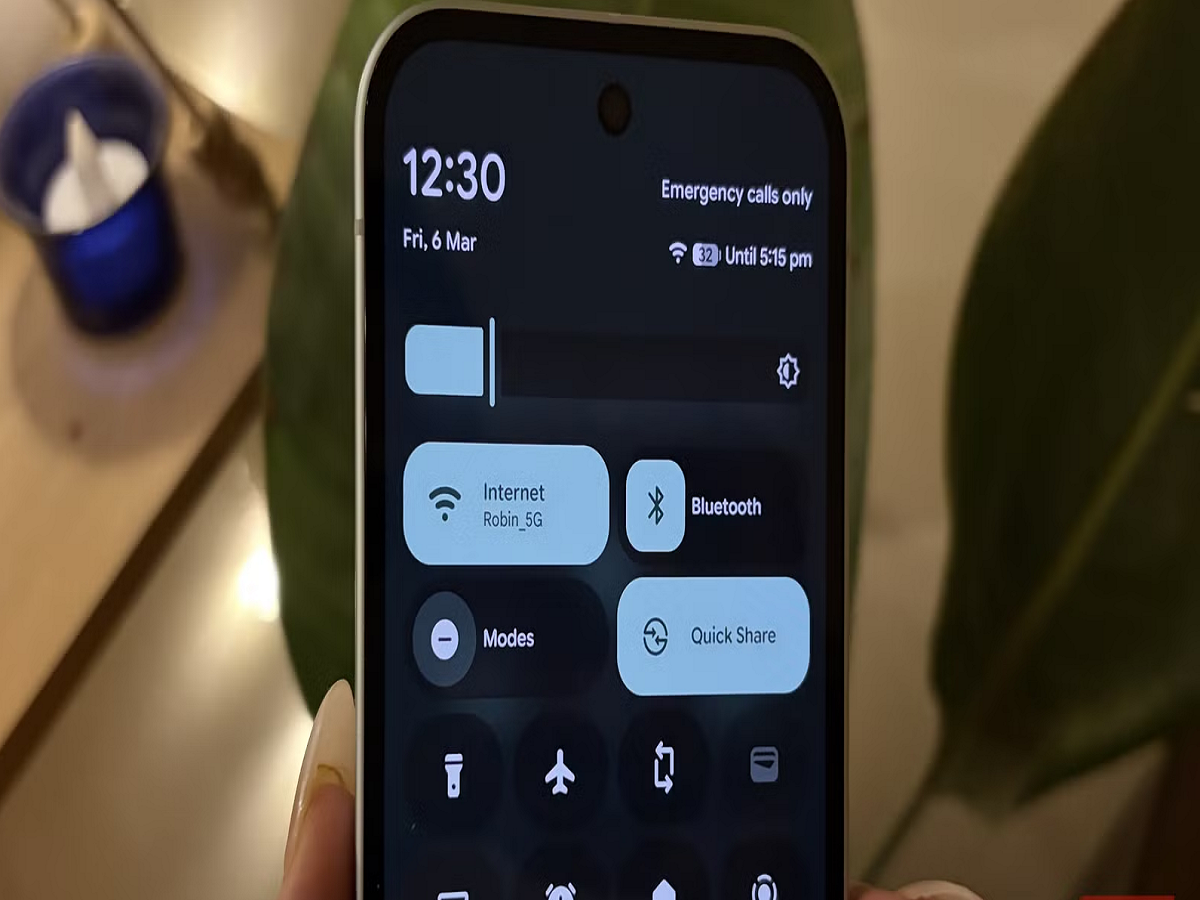
Check which Wi-Fi network your phone is using
If you're in a location with several saved networks, your phone may automatically connect to one of them.
Open your Wi-Fi settings and check the network currently being used. If the connection is slow or unstable, manually switch to a stronger trusted network.
This is particularly useful in homes and offices where multiple routers or Wi-Fi extenders are available.
Turn off automatic connection to unknown networks
Automatic Wi-Fi connection can be convenient, but connecting to unfamiliar networks isn't always a good idea.
If your smartphone offers an option to automatically connect to open networks, consider disabling it. This gives you greater control over which networks your phone joins.
When using public Wi-Fi, verify the network name with the hotel, cafe, airport or other establishment before connecting.
Use the "switch to mobile data" feature carefully
Some Android phones offer a feature that automatically switches to mobile data when Wi-Fi connectivity becomes poor.
This can be useful because you may continue browsing without interruption. However, it can also consume your mobile data without you noticing.
If your data plan is limited, check whether your phone has a setting such as "Switch to mobile data", "Adaptive connectivity" or a similar option and decide whether you actually need it.
Check which apps are consuming data
Your phone can show exactly which applications are using the most mobile data.
Go to your network or data-usage settings and review the list. You may discover that video-streaming, social-media or cloud-storage applications are consuming much more data than expected.
For apps that don't need constant background access, consider restricting background mobile-data usage.
Avoid downloading large files on mobile data
Large videos, operating-system updates and cloud backups can consume significant amounts of mobile data.
Whenever possible, configure large downloads and backups to occur over trusted Wi-Fi. Many apps provide separate settings for controlling downloads over mobile networks.
Use data-saving features when necessary
Android and many individual applications provide data-saving options.
A data-saving mode can restrict background activity and reduce unnecessary data consumption. It's particularly useful when you're approaching your monthly data limit.
You can turn it off later when you have access to a reliable Wi-Fi connection.
Forget old Wi-Fi networks
Your phone may remember networks from hotels, restaurants, offices and other places you visited months or years ago.
If you no longer use these networks, removing them from your saved Wi-Fi list can reduce clutter and prevent accidental connections.
Open your Wi-Fi settings, select an old network and choose the option to forget it.
Keep your Wi-Fi settings under control
Wi-Fi isn't simply an on-and-off switch. Your smartphone's connection settings can affect privacy, battery usage and mobile-data consumption.
By checking automatic connections, monitoring data usage and removing old networks, you can have much greater control over how your phone connects to the internet.