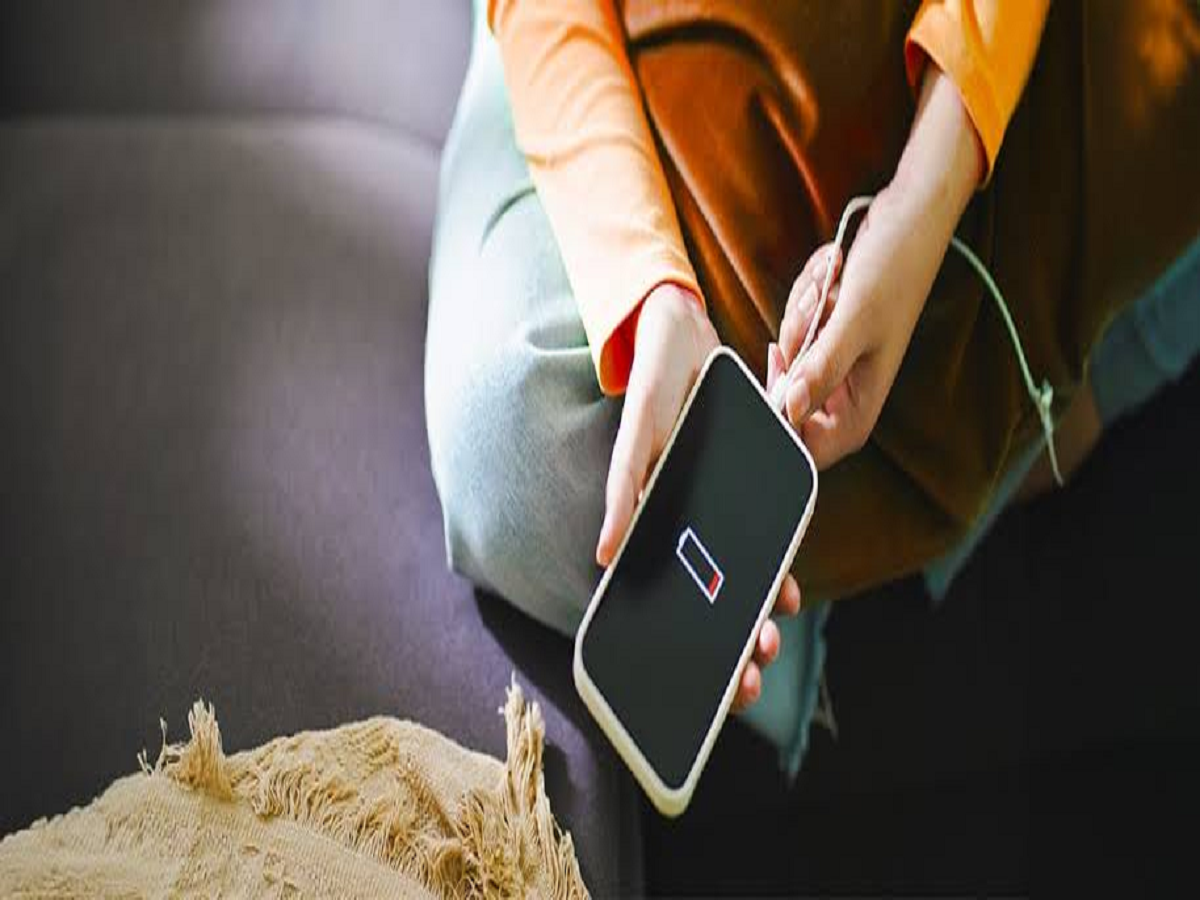
A smartphone battery that once lasted an entire day can sometimes start running out of charge within just a few hours. While battery aging is one possible reason, excessive background activity, bright displays, location services and poorly optimized apps can also contribute to faster battery drain.
Before replacing the battery or buying a new phone, check these settings.
1. Find the apps using the most battery
Your phone already has a built-in battery usage report.
Open the battery section in Settings and check which apps have consumed the most power recently. If an application is using an unusually large amount of battery despite limited use, investigate its background activity or consider uninstalling it.
2. Reduce unnecessary screen brightness
The display is one of the biggest power consumers on a smartphone.
Using maximum brightness throughout the day can drain the battery considerably faster. Keep brightness at a comfortable level and enable adaptive brightness if it works well for you.
You can also reduce the screen timeout so the display doesn't remain on unnecessarily.
3. Check location permissions
GPS and location services can consume additional power when apps repeatedly request your location.
Review which applications have location access. For apps that don't need continuous tracking, choose "While using the app" instead of allowing unrestricted background access.
4. Be careful with always-on connectivity
Bluetooth, mobile data, Wi-Fi scanning and other connectivity features can contribute to power consumption, particularly when the phone is constantly searching for connections.
You don't necessarily need to turn everything off permanently. Simply disable features you aren't using for extended periods, especially when you're travelling or trying to conserve battery.
5. Limit unnecessary background activity
Some applications continue refreshing content even when you're not actively using them.
Check your battery or app settings for background usage and restrict applications that don't need to operate continuously.
Be careful not to restrict essential messaging or system applications if you depend on their notifications.
6. Reduce unnecessary notifications
Every notification can wake the screen, trigger sounds or cause the phone to perform background activity.
Review notification permissions and disable alerts from apps that aren't important. This can improve both battery life and your overall phone experience.
7. Use battery-saving mode when necessary
Most modern smartphones include a battery-saving mode that limits certain background activities and performance features.
You don't have to keep it enabled permanently. Turn it on when your battery is running low and you need the phone to last until you can charge it.
8. Check the battery's health
If your phone is several years old and the battery still drains unusually quickly after you've optimized the settings, the battery itself may have degraded.
Some phones provide battery-health information in Settings. If the battery capacity has fallen significantly, professional battery replacement may restore much of the phone's original endurance.
Don't blame every battery problem on the charger
A slow or rapidly draining phone isn't necessarily caused by a faulty charger. In many cases, the real problem is an aging battery or an application consuming excessive power in the background.