A “storage almost full” warning can quickly become frustrating. It may prevent you from taking new photos, downloading files, installing apps or even updating your phone. In some cases, extremely limited free storage can also affect overall performance.
Buying a new smartphone or deleting important photos is not necessarily the first solution. Android users can often recover significant space by cleaning unnecessary files and reviewing what is consuming storage.
Here are six practical steps to try.
1. Find Out What Is Using Your Storage
Before deleting anything, check where your phone's storage is actually going.
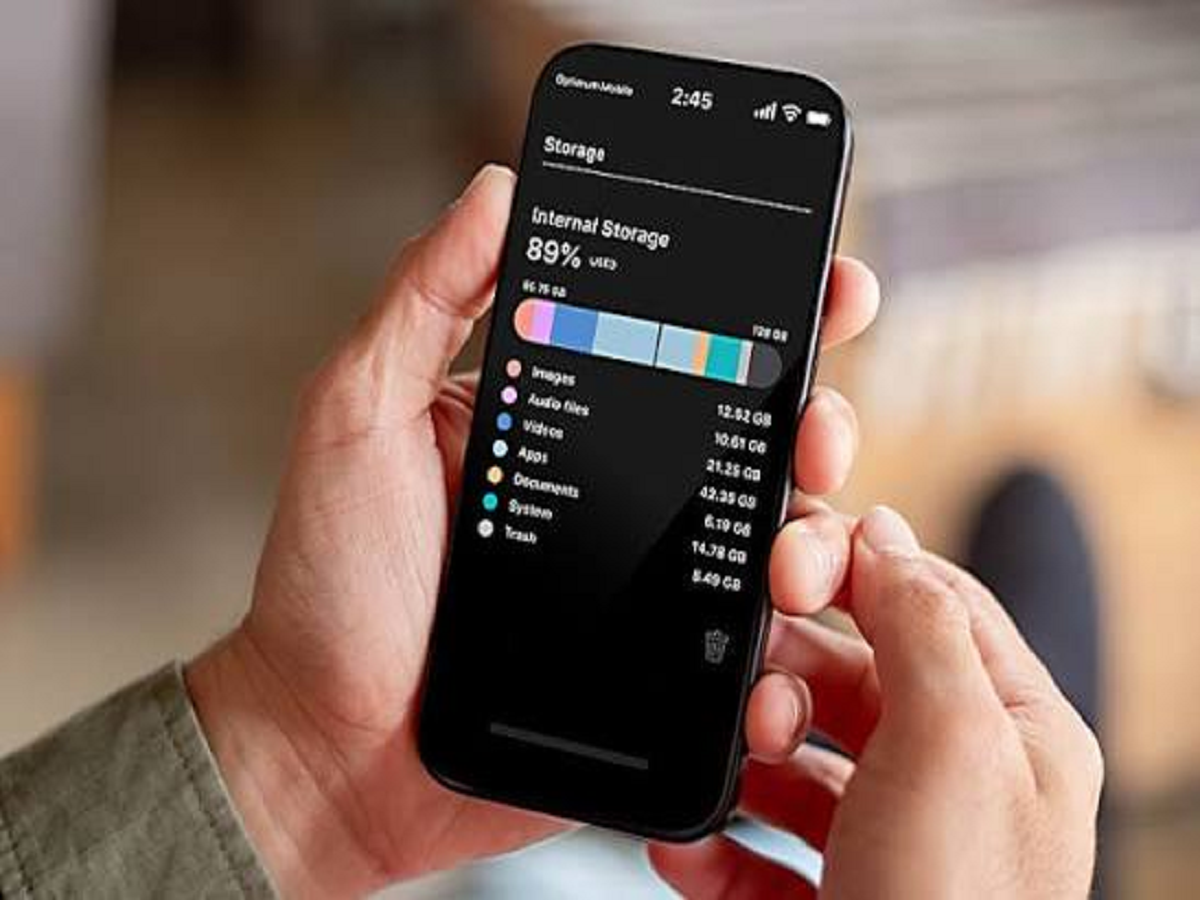
Open Settings > Storage or the equivalent menu on your device. Android phones typically divide storage into categories such as apps, photos, videos, documents and system files.
If videos or apps are consuming most of the space, focus on those categories rather than randomly deleting small files.
2. Remove Apps You No Longer Use
Old games and apps can occupy several gigabytes even if you have not opened them for months.
Review your installed applications and uninstall those you no longer need. If you are unsure about an app, check what it does before removing it, particularly if it was pre-installed by the phone manufacturer.
You can always reinstall most regular apps later if required.
3. Clean WhatsApp Media Carefully
WhatsApp can quietly become one of the largest consumers of phone storage.
Photos, videos, documents and other media shared through chats and groups can accumulate over time.
WhatsApp provides storage-management options that can help users identify large files and conversations consuming significant space.
Before deleting anything, review the files carefully. Back up important photographs, documents or videos you want to preserve.
4. Delete Duplicate and Unnecessary Photos
Modern smartphones encourage users to take multiple photographs of the same scene. Screenshots, memes, blurred pictures and downloaded social-media images can also accumulate rapidly.
Review your gallery periodically and remove files you no longer need.
If your photos are backed up to a trusted cloud service, you may also have options to remove local copies from the phone while retaining backed-up versions. Always confirm that the backup has completed successfully before deleting originals.
5. Clear App Cache—But Know What You Are Deleting
Apps create temporary files known as cache to improve performance and loading times.
On supported Android devices, clearing the cache of an app that has accumulated a large amount of temporary data can free some space.
However, clearing cache and clearing app data are not the same thing.
Clearing app data or storage can reset an application and may remove locally stored information or sign you out. Read the warning displayed by your phone before confirming.
6. Check the Downloads Folder
The Downloads folder is easy to forget.
PDFs, APK files, images, videos and documents downloaded months ago may still be occupying storage.
Open your file manager and review the Downloads folder. Delete files you no longer require, but avoid removing documents unless you are certain they are unnecessary or safely backed up elsewhere.
Don't Install Unknown 'Phone Cleaner' Apps
A storage warning often leads users to search for cleaner or booster apps.
Be careful. Unknown cleaning apps may request unnecessary permissions, display intrusive advertisements or collect data.
Android already provides built-in storage management features, and reputable file-management tools can usually handle routine cleanup without requiring questionable third-party applications.
Back Up Important Files Before a Major Cleanup
Before deleting hundreds of photos, videos or documents, make sure important data exists somewhere else.
You can use a trusted cloud backup service, computer or external storage device depending on your phone and preferences.
After confirming that the backup is accessible, remove unnecessary local files to recover storage.
A regular cleanup every few months can prevent your phone from reaching its storage limit again.
Note: Storage menus and cleanup features differ depending on Android version and smartphone manufacturer. Always verify that important files are backed up before permanently deleting them.