TECH
Deleted Photos by Mistake? Try These 5 Ways to Recover Pictures on Android Before They Disappear Forever
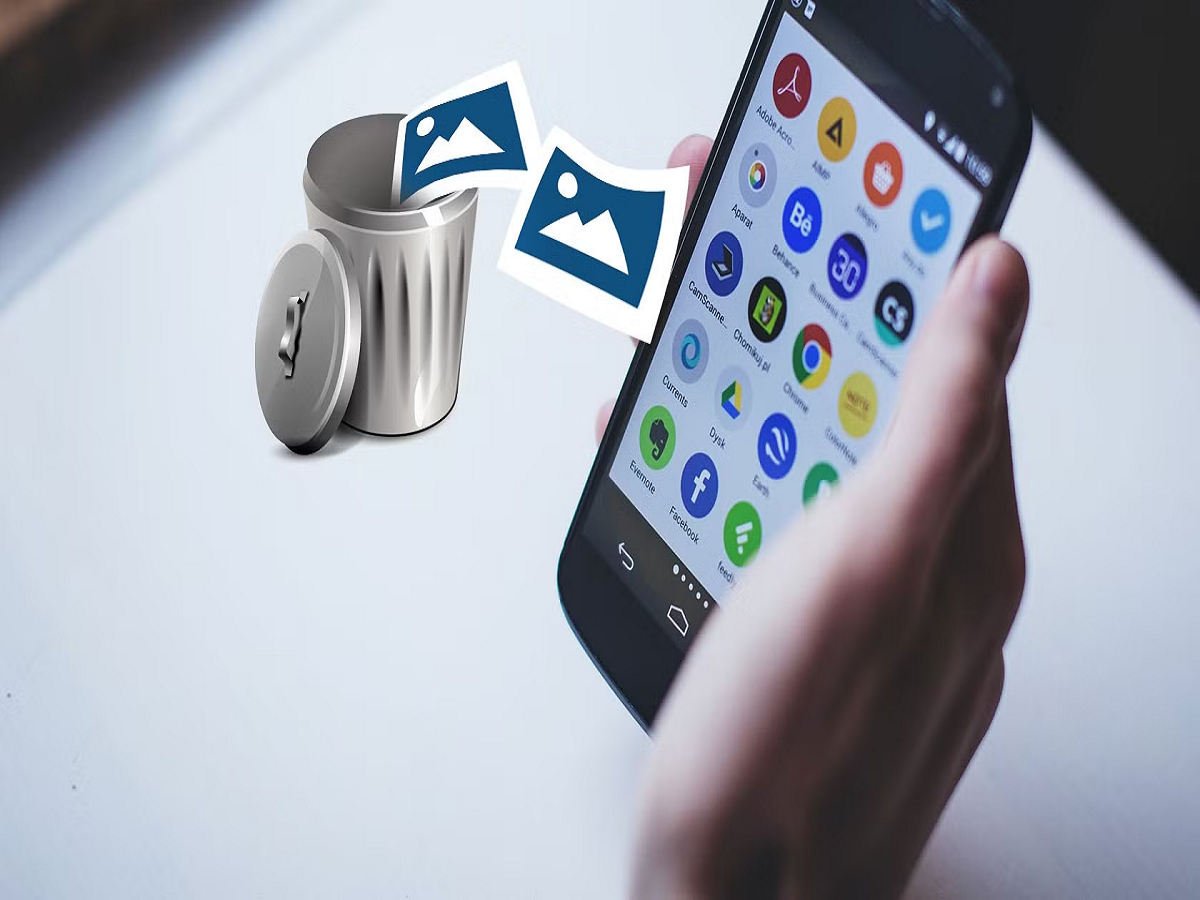
Accidentally deleting an important family photo, screenshot or video can be frustrating, but pressing the delete button does not always mean the file is immediately gone forever. Many Android phones and photo apps temporarily keep deleted pictures in a Trash, Bin or Recently Deleted folder, giving users a limited period to restore them.
If you have accidentally removed important photos, avoid panicking or immediately installing unknown recovery apps. Try these five options first.
1. Check Your Phone's Gallery Trash
Many Android smartphone brands provide a Trash or Recently Deleted folder inside their Gallery app.
Open the Gallery and look for options such as Trash, Recycle Bin or Recently Deleted. If your picture is still there, select it and tap Restore.
The number of days deleted files remain available varies depending on the phone manufacturer and settings.
2. Check Google Photos
If you use Google Photos, open the app and check its Trash section.
Deleted photos and videos may remain there temporarily before being permanently removed. If the image is available, select it and choose the Restore option.
The picture may then return to the Google Photos library and, depending on its original location and backup status, other relevant albums.
3. Check Whether the Photo Was Backed Up
A photograph deleted from your phone's local storage may still exist in a cloud backup.
Check any photo-backup service you regularly use. Search by date, location or album if you cannot immediately find the image.
Do not assume a backup exists simply because cloud backup was enabled. Always confirm that the specific photograph was successfully uploaded.
4. Look in WhatsApp or Other Chats
If you previously sent the missing photo to a family member or friend, another copy may still exist in the conversation.
Check WhatsApp, messaging apps, email attachments or other services where the picture might have been shared.
The copy may not always have the same quality as the original, particularly if an app compressed the image, but it could still help recover an important memory.
5. Check Your Computer or External Storage
Think about whether you previously transferred photographs to a laptop, desktop computer, memory card or external drive.
Users often create copies of photographs without remembering them later.
Search folders such as Pictures, DCIM, Camera, Downloads and WhatsApp Images on devices where you previously transferred smartphone data.
Avoid Random Photo Recovery Apps
If a picture is no longer available in Trash or backup, users may be tempted by apps promising to recover every permanently deleted photo.
Be cautious.
Some recovery applications request broad access to files, photos or other sensitive information without guaranteeing successful recovery. Modern Android storage security and data overwriting can also make permanently deleted files difficult or impossible to restore.
Avoid giving unknown applications extensive permissions simply because they promise instant recovery.
How to Prevent Losing Photos Again
The safest approach is to prepare before an accidental deletion happens.
Enable automatic backup using a trusted service and periodically confirm that important photos are actually being backed up. For particularly valuable family photographs or documents, keeping a second copy on a computer or external drive provides additional protection.
If you accidentally delete an image, check Gallery Trash, Google Photos, cloud backups, messaging apps and other storage devices as quickly as possible. Waiting too long could reduce your chances of recovery if the Trash folder automatically deletes files after its retention period.
Note: Recovery options and retention periods vary by smartphone manufacturer, Android version, photo app and backup settings. Permanently deleted files may not always be recoverable.