TECH
Your Wi-Fi Router May Be the Weakest Link in Your Home Cybersecurity: 8 Settings You Should Change Today
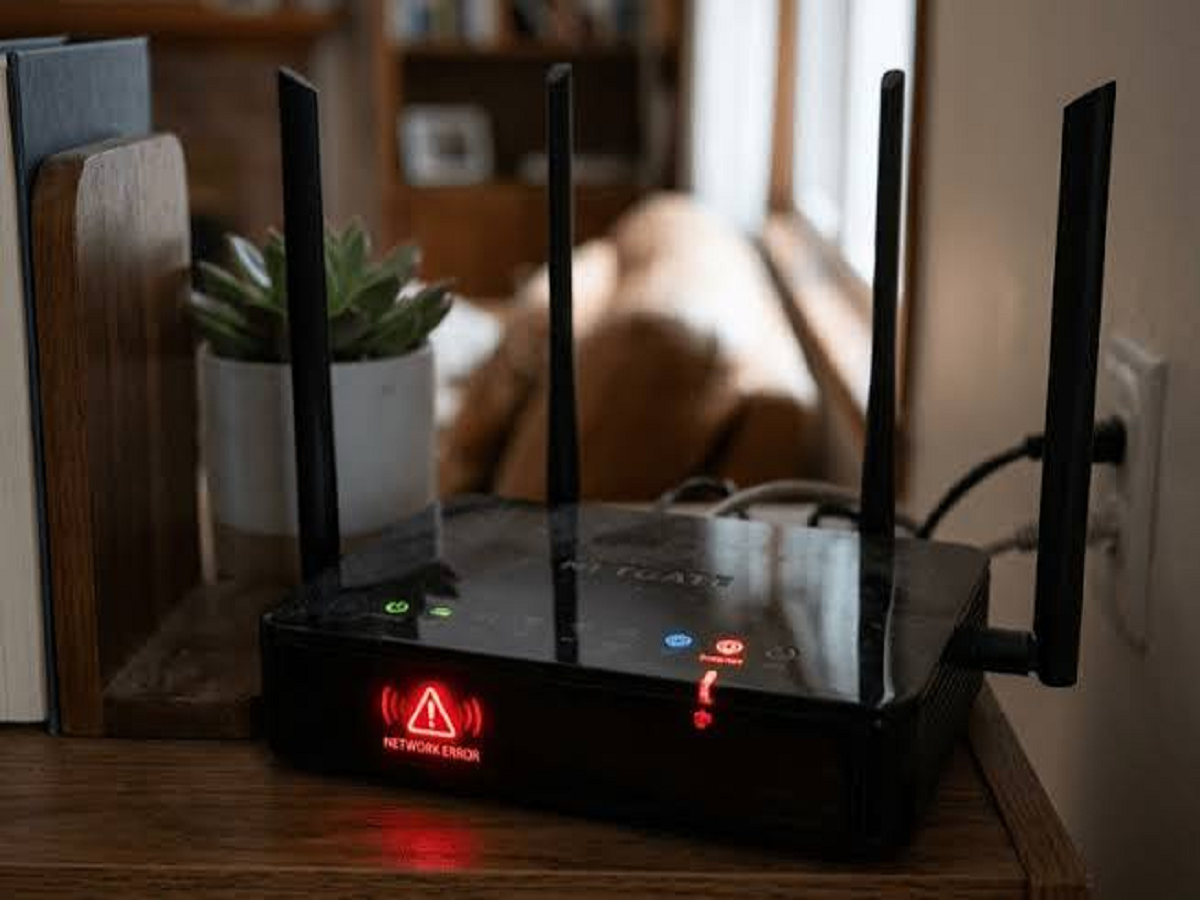
Most people protect their smartphones with passwords and install security software on their computers, but often forget about the device connecting everything to the internet: the Wi-Fi router.
Your router connects smartphones, laptops, smart TVs, security cameras and other devices to your home network. If it is poorly secured, it could create opportunities for unauthorised users to access the network, misuse your internet connection or target vulnerable connected devices.
The good news is that improving router security does not necessarily require buying expensive equipment. A few simple changes can make your home network more secure.
Why Is Your Wi-Fi Router So Important?
A router acts as a gateway between your home devices and the internet. It manages network traffic and, in many cases, provides built-in security features such as a firewall.
However, routers can become vulnerable when they use outdated software, weak administrator passwords or insecure configuration settings. Some older devices may no longer receive security updates, making replacement worth considering.
A secure router cannot guarantee complete protection, but it can reduce several common risks.
Eight Wi-Fi Router Settings You Should Check
1. Change the Default Administrator Password
Many routers come with a default administrator username and password. If these credentials remain unchanged, someone who gains access to the router's management interface may be able to modify its settings.
Create a strong, unique administrator password and store it securely. This password should be different from your Wi-Fi password.
2. Use WPA2 or WPA3 Security
Check the wireless security settings in your router's administration panel.
WPA3-Personal is a strong option when supported by your router and connected devices. WPA2-AES is a reasonable alternative for compatible equipment that does not support WPA3.
Avoid outdated security protocols such as WEP and older, insecure configurations.
3. Update Your Router's Firmware
Firmware is the software that controls how your router operates. Manufacturers sometimes release updates to fix security vulnerabilities, improve stability and address bugs.
Open your router's administration interface or official mobile application and check whether a firmware update is available.
If the router no longer receives security updates, consider replacing it with a model that has ongoing manufacturer support.
4. Disable Remote Administration if You Do Not Need It
Some routers allow their settings to be accessed remotely over the internet.
Although this feature can be useful in certain situations, leaving it enabled unnecessarily may increase exposure to attacks.
If you do not need remote administration, disable it. If you do need it, use strong authentication and follow the manufacturer's security recommendations.
5. Turn Off WPS if You Do Not Use It
Wi-Fi Protected Setup, or WPS, is designed to make connecting devices easier. However, some implementations have security weaknesses.
If you do not use WPS, consider disabling it through your router's settings. This can reduce unnecessary attack opportunities.
6. Create a Separate Guest Network
Friends and visitors may need internet access without needing access to your main home network.
A guest network allows visitors to connect separately, depending on the router's capabilities. This can help keep personal computers, storage devices and other home equipment isolated from guest devices.
Use a separate, strong password and enable guest isolation if the router supports it.
7. Review Connected Devices
Many routers display a list of devices connected to the network.
Check the list occasionally and investigate devices you do not recognise. Keep in mind that device names can be confusing, and some legitimate devices may appear under unfamiliar manufacturer names.
If you suspect unauthorised access, change the Wi-Fi password, reconnect your own devices and review the router's security settings.
8. Disable Features You Do Not Need
Some routers offer additional services such as UPnP, port forwarding and file-sharing functions.
These features can be useful for particular applications, but unnecessary or poorly configured services may create security risks.
Review the router's settings and disable features you do not use. Avoid changing unfamiliar settings blindly; consult the manufacturer's documentation if you are unsure about their purpose.
Should You Hide Your Wi-Fi Network Name?
Some routers allow you to stop broadcasting the network name, also known as the SSID.
However, hiding the network name is not a substitute for strong encryption and a secure password. It may also make connecting new devices more inconvenient.
Your priority should be modern Wi-Fi security, a strong password, updated firmware and secure administrator access.
What About Smart Home Devices?
Smart bulbs, cameras, speakers and televisions also connect to your home network. An outdated or poorly secured smart device may introduce additional risks.
Change default passwords where possible, install available updates and disable features you do not need.
If your router supports separate networks for smart home devices, consider using that option to keep them apart from computers containing sensitive information.
How Often Should You Check Your Router?
You do not need to inspect your router every day. A review every few months, along with checks whenever you receive a security update or notice unusual behaviour, is a practical starting point.
If your internet connection suddenly becomes unreliable, your router settings change unexpectedly or unknown devices repeatedly appear, investigate rather than assuming the problem is simply a slow connection.
The Bottom Line
Your Wi-Fi router plays an important role in protecting every device connected to your home network. Changing default passwords, enabling modern encryption, installing firmware updates and disabling unnecessary features can significantly improve your security.
Take a few minutes to review your router today. Securing the device that connects your entire home to the internet is an important step towards protecting your personal information.