Seeing a 5G or 4G icon on an Android phone does not always mean you will get fast internet. At times, videos may keep buffering, websites may take longer to open and apps may struggle to load content even though the phone appears to have a strong mobile-network connection.
Slow mobile internet can have several possible causes, including temporary network problems, weak coverage, congestion, incorrect APN settings or apps consuming data in the background.
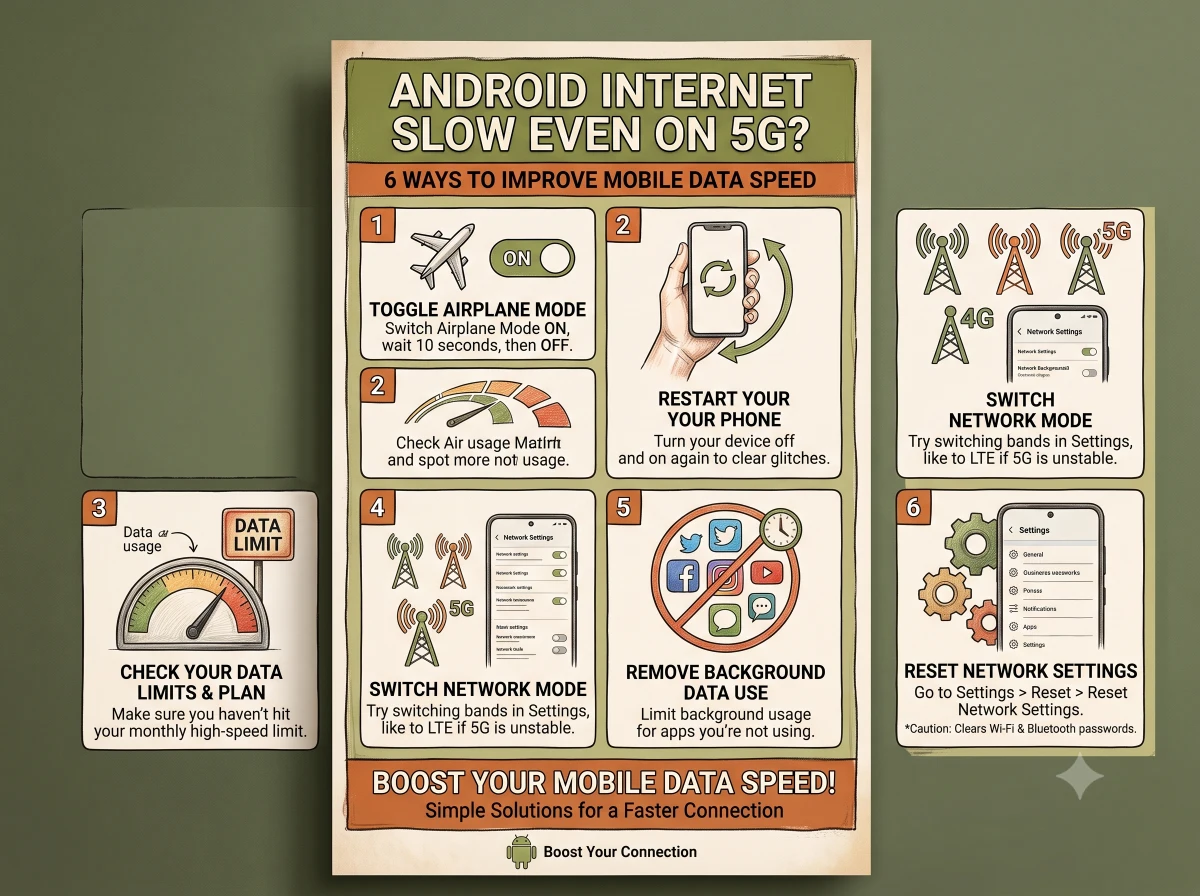
Before assuming there is something wrong with your smartphone, you can try a few basic troubleshooting steps. Here are six methods that may help improve the mobile-data experience on an Android phone.
1. Turn Airplane Mode On and Off
One of the quickest troubleshooting methods is toggling Airplane Mode.
Swipe down from the top of your Android phone to open the Quick Settings or notification panel. Turn Airplane Mode on, wait approximately 5 to 10 seconds, and then switch it off.
Doing this temporarily disconnects the phone's wireless connections. Once Airplane Mode is disabled, the device reconnects to the mobile network.
This can sometimes resolve a temporary connection problem without requiring you to change any advanced settings.
However, toggling Airplane Mode does not guarantee that your phone will always connect to the fastest tower or provide a higher internet speed. Actual performance still depends on network availability and conditions.
2. Clear Your Browser's Cached Files
If web pages feel particularly slow, clearing your browser's cached data is another step you can try.
For Google Chrome, the supplied instructions suggest opening:
Chrome > Three Dots > History > Clear Browsing Data
From there, users can select “Cached images and files” and clear the relevant cached data.
Cache files are stored to help apps and websites load certain content more efficiently. Clearing them can sometimes resolve browser-related loading problems when cached information has become outdated or problematic.
However, cache clearing should not be viewed as a guaranteed method of increasing your mobile network's actual download or upload speed.
If every application on your phone is slow, the problem may lie elsewhere.
3. Restrict Apps > Select App > Mobile Data & Wi-Fi > Background Data
You can then restrict background data for applications that do not need constant connectivity.
The exact menu names vary between Android manufacturers and software versions.
Be selective when changing this setting. Disabling background data can delay notifications, message synchronisation and other app functions.
4. Check Your Preferred Network Type
Your Android phone's network preference can also affect its mobile-data experience.
Open the network or SIM settings and look for an option similar to:
Settings > Network & Internet / SIM Cards & Mobile Networks > Preferred Network Type
According to the supplied guidance, users can select an automatic option supporting 5G/4G/3G, where available.
An automatic network setting can allow the phone to choose between supported technologies according to network availability.
It is important to understand that 5G is not automatically faster in every location. A weak or congested 5G connection can sometimes perform worse than a strong 4G connection.
Network options also depend on the smartphone, SIM, mobile operator, plan and coverage in your area.
5. Reset APN Settings to Default
Incorrect Access Point Name (APN) settings can interfere with mobile-data connectivity.
APN settings provide information your phone uses to connect to your mobile operator's data network.
On many Android devices, the setting can be found through a path similar to:
Settings > Mobile Network > Select SIM > Access Point Names
Users can then open the menu and choose “Reset to Default”, where that option is available.
This can restore the carrier's default APN configuration if settings have accidentally been modified.
Avoid entering random APN values found on unknown websites. If resetting the APN does not resolve the issue, check the correct settings with your mobile-network provider.
6. Restart Your Android Phone
Sometimes the simplest solution is to restart the phone.
A restart closes active processes, reloads the operating system and reinitialises various device and network functions.
After the phone starts again, turn on mobile data and check whether websites, apps or videos are loading normally.
Restarting can help resolve temporary software or network glitches, but it does not permanently increase the speed provided by your telecom operator.
Why Is Internet Slow Despite Showing 5G?
The 5G symbol indicates that your phone is connected to or using a compatible mobile network under the conditions supported by your device and operator. It does not guarantee a particular download speed.
Internet performance can be influenced by factors such as:
Mobile-network coverage
Network congestion
Signal conditions
Your telecom plan
Data limits or applicable speed restrictions
Smartphone capabilities
Background downloads
Problems with a particular app or website
Therefore, changing phone settings may not solve the problem when the underlying issue is with network coverage or the telecom service.
Check Whether Only One App Is Slow
Before resetting network-related settings, determine whether the problem affects the entire phone.
Try opening different websites and apps.
If only one app is slow while everything else works normally, the issue may be associated with that particular application or service rather than your mobile internet connection.
You can try closing and reopening the affected app or checking whether an update is available.
If every app and website is slow, investigating the network connection becomes more relevant.
Don't Assume Full Signal Bars Mean Maximum Speed
Strong signal bars and fast internet are related but not identical.
Your phone may show a good mobile signal while data performance remains slow because many users are accessing the same network infrastructure simultaneously.
Similarly, local coverage conditions can change as you move between indoor and outdoor areas or different locations.
This is why slow internet during a busy period does not necessarily mean there is a fault with the phone.
Be Careful Before Resetting All Network Settings
Resetting an APN to its carrier default is different from resetting all network settings on the smartphone.
A complete network reset can affect saved Wi-Fi connections, Bluetooth pairings and other network preferences, depending on the Android device.
Therefore, start with simpler troubleshooting methods before using a broader reset option.
Still Getting Slow Internet? Contact Your Mobile Operator
If mobile internet remains unusually slow after trying these steps, the issue may be outside your smartphone.
There could be weak coverage, network congestion, a temporary outage or an issue associated with your mobile-data plan.
Contact your telecom operator to check whether there is a known network problem in your area or an issue with your SIM or account.
You can also compare performance in another location to see whether the problem is limited to one area.
Android Internet Slow? Try These Steps First
If your Android phone shows 5G or 4G but the internet remains slow, begin with simple troubleshooting.
Toggle Airplane Mode, check whether