TECH
Your Deleted Photos May Still Be on Your Phone! 6 Things You Should Know Before Selling Your Smartphone
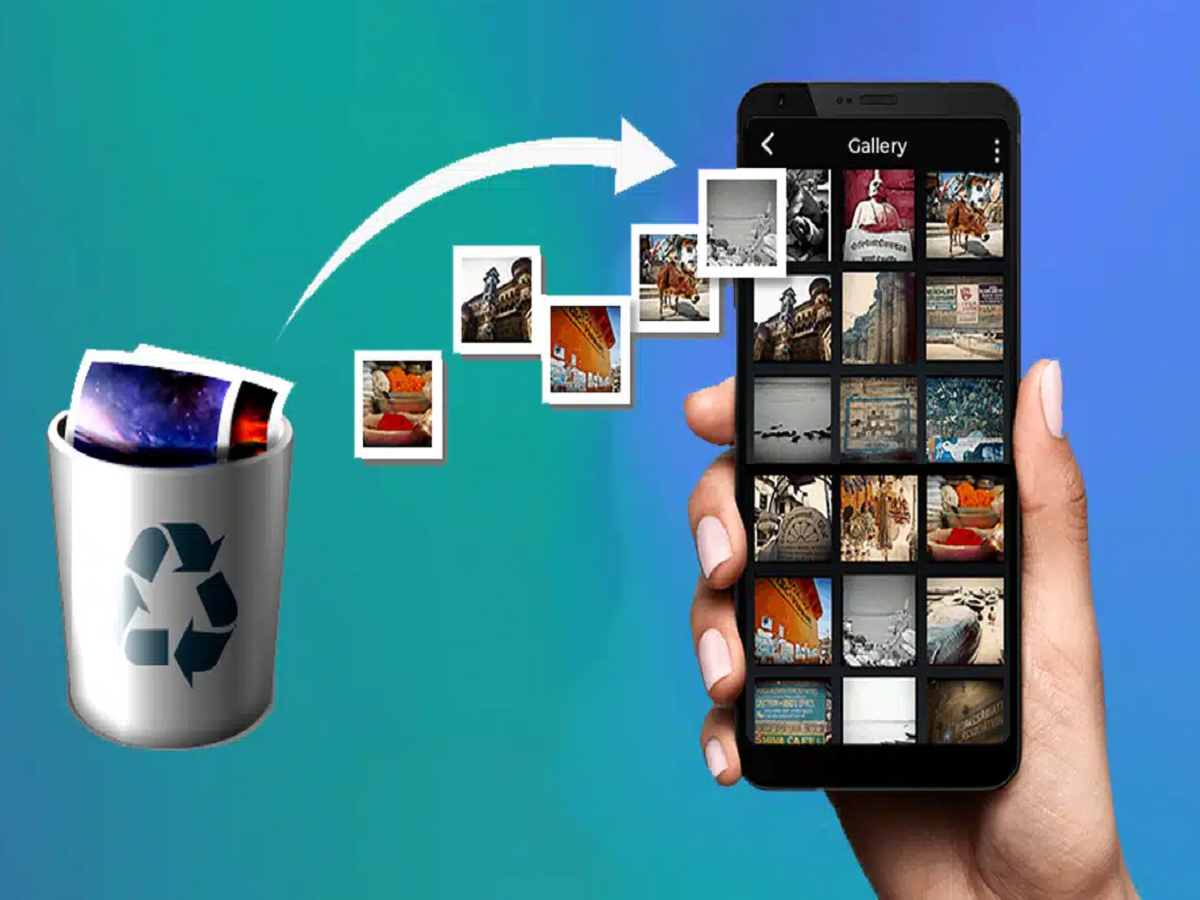
Planning to sell your old smartphone, exchange it for a new model or give it to a family member? Before handing it over, there is one important step you should never ignore: protecting your personal data.
Many people assume that deleting photographs, messages and applications is enough to make a phone safe for its next owner. Unfortunately, deleting individual files does not necessarily remove all personal information, and some data may remain in cloud accounts, backups or other connected services.
Your smartphone may contain private photographs, saved passwords, banking applications, identity documents and personal conversations. If you are planning to sell or exchange your device, here is how to prepare it properly.
1. Deleting Photos Is Not the Same as Erasing Your Phone
When you delete a photograph, it may remain in a Recently Deleted or Trash folder for a limited period before being permanently removed.
Cloud services may also synchronise photographs across several devices. Deleting a picture from one location does not always have the effect users expect, depending on the service and its settings.
Before selling your phone, review your photo gallery, Recently Deleted folder and cloud storage account. Make sure important photographs are backed up before permanently removing anything.
If your goal is to hand over the device, a properly performed factory reset is generally more appropriate than deleting files individually.
2. Back Up Important Information Before Resetting
A factory reset removes user data from the phone, so preparation matters.
Before resetting your device, check that your important information has been backed up. This may include:
-
Contacts and calendar entries.
-
Photographs and videos.
-
Documents and downloaded files.
-
WhatsApp chats and other messaging data.
-
Notes and voice recordings.
-
Authentication and recovery information.
For Android phones, you can review the backup options under Settings and Google or the relevant manufacturer's account.
For iPhones, check your iCloud backup or create a backup using a supported computer method.
Do not assume that every application automatically saves its data to the cloud. Verify that the information you need is actually available before proceeding.
3. Remove Your Accounts and Perform a Factory Reset
A factory reset is a key step when preparing a smartphone for another owner.
On most Android phones, the reset option is available under Settings, System or General Management, and Reset. The exact menu depends on the manufacturer and software version.
On an iPhone, the option is available under Settings, General, Transfer or Reset iPhone, and Erase All Content and Settings.
Follow the on-screen instructions and make sure the process completes.
On Android, also check the device's account and factory-reset protection requirements. On iPhone, follow the prompts to sign out of your Apple Account and disable Find My as part of the erasure process.
These steps help prevent the next owner from encountering activation or account-lock issues.
4. Remove the SIM Card and Check Your eSIM
A physical SIM card may contain information or provide access to your mobile number, depending on the card and services used.
Remember to remove your physical SIM before handing over the device.
If you use an eSIM, check the transfer or removal options before resetting the phone. If you are keeping your number, ensure that your mobile service has been transferred or reactivated on the new device as appropriate.
Also consider whether your number is linked to banking services, two-factor authentication or account-recovery processes. Make sure you retain access to these services after the old phone is erased.
5. Don't Forget Your Memory Card and Accessories
Some Android phones support removable microSD cards. A factory reset may not erase the contents of an external memory card, depending on the device and reset options.
If your phone has a memory card, remove it before selling the device. If you intend to sell the card as well, erase it separately after backing up anything you want to keep.
You should also remove the physical SIM, disconnect accessories from your accounts where relevant and check whether any paired wearable devices need to be reset or transferred.
These small steps can prevent personal information from being left behind.
6. Check Your Cloud Accounts After the Reset
Erasing a smartphone does not automatically delete all information stored in your online accounts.
Your photographs may remain in cloud storage, while messages, documents and backups may continue to exist in their respective services. This is often useful when moving to a new phone, but it is important to understand the difference between erasing a device and deleting a cloud account.
After the reset, confirm that the old phone no longer appears as an active device in your account where applicable. Review your account's device list and sign out or remove the old device if necessary.
Do not delete your entire cloud account simply because you are selling one phone.
Is a Factory Reset Enough to Protect Your Data?
For modern iPhones and Android smartphones with properly implemented encryption, the built-in factory-reset process is generally designed to make the previous owner's data inaccessible.
However, a reset does not protect information that remains in cloud accounts, on removable storage or in other devices. It is also important to use the official reset procedure rather than relying on third-party applications that promise to erase everything.
If your phone is damaged and cannot be reset normally, seek advice from the manufacturer or a reputable service provider before handing it over.
A Quick Checklist Before Selling Your Phone
Before completing the sale or exchange, confirm that you have:
-
Backed up all important information.
-
Verified that the backup is usable.
-
Transferred your authenticator apps and essential account access.
-
Signed out of relevant accounts and completed the factory reset.
-
Removed the SIM card and handled the eSIM appropriately.
-
Removed any memory card you intend to keep.
-
Checked that the phone starts at its initial setup screen.
Final Word
Selling an old smartphone should not mean risking your photographs, financial information or private conversations.
The safest approach is to back up what you need, transfer access to your essential accounts, perform the device's official factory reset and check for removable storage or cloud accounts that need separate attention.
A few minutes of preparation can make the difference between a smooth phone exchange and an avoidable privacy problem.