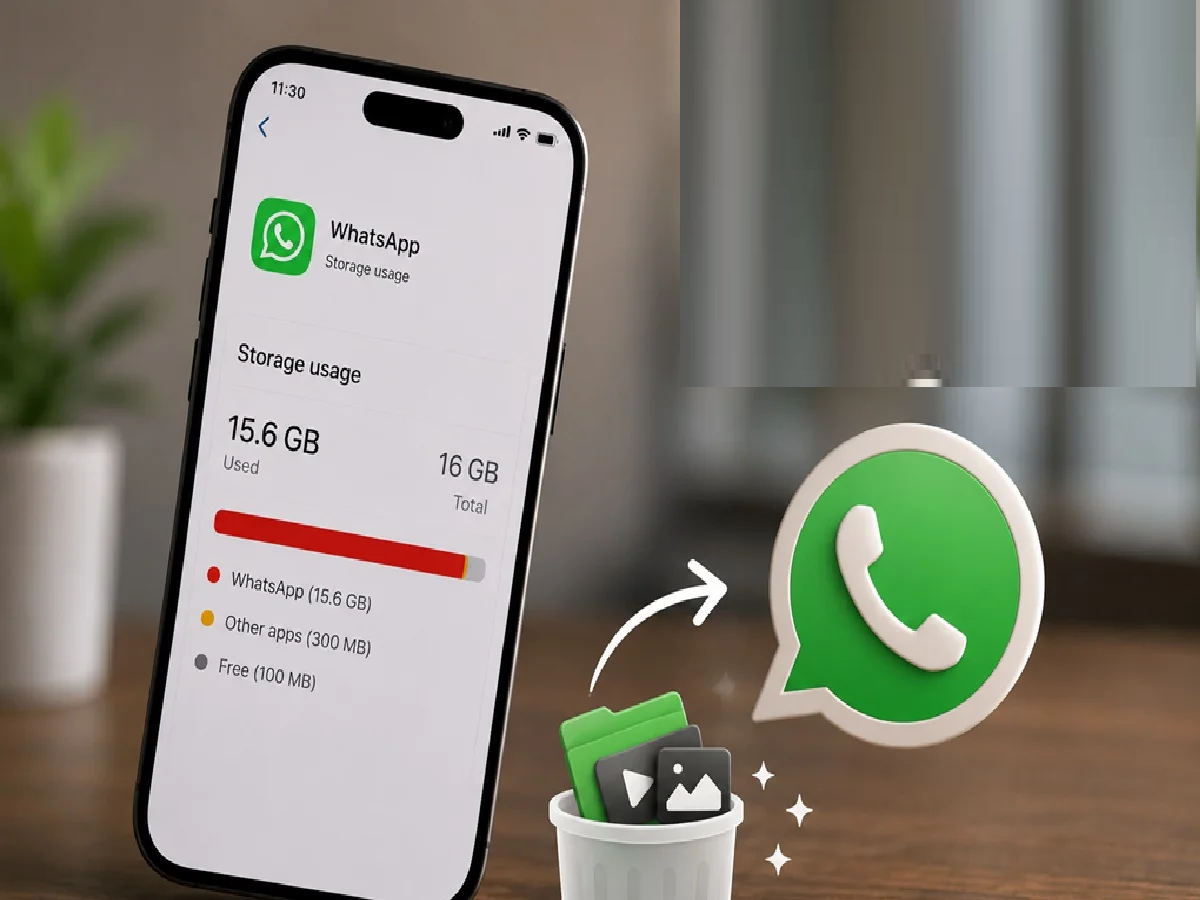
WhatsApp can take up a lot of storage over time as photos, videos, documents, voice notes, and forwarded files accumulate. If you're running low on space on your phone, these simple steps can help you regain storage without deleting important chats.
1. Check WhatsApp storage usage
Open WhatsApp > Settings > Storage and Data > Manage Storage. This section shows how much space WhatsApp is using and identifies the chats and media files that take up the most storage.
2. Delete large and unnecessary files
Review videos, documents, and forwarded media that are several megabytes in size. Delete files you no longer need to quickly free up space.
3. Clear media from individual chats
Some chats and groups contain hundreds of photos and videos. Open a chat, tap the contact or group name, go to Media, Links & Docs, and delete unnecessary items while keeping the important files.
4. Turn off automatic media downloads
To prevent unnecessary files from filling up your phone, go to Settings > Storage & data and turn off automatic downloads for photos, videos, audio, and documents when using mobile data or Wi-Fi.
5. Stop saving media to your gallery
If you don't want every WhatsApp image and video to appear in your phone's gallery, turn off media visibility in WhatsApp settings. This keeps your gallery organized and less cluttered.
6. Take a backup before deleting
Before deleting important chats or media, back up WhatsApp to Google Drive (Android) or iCloud (iPhone). This ensures your important conversations are safe.
7. Clear WhatsApp storage regularly
Make it a habit to review your storage every few weeks. Regularly deleting duplicate files, old videos, and unnecessary documents helps prevent storage from filling up again.
PC: Smartprix