TECH
Google Photos Storage Full? 7 Smart Tricks to Save Space Without Losing Your Favourite Memories
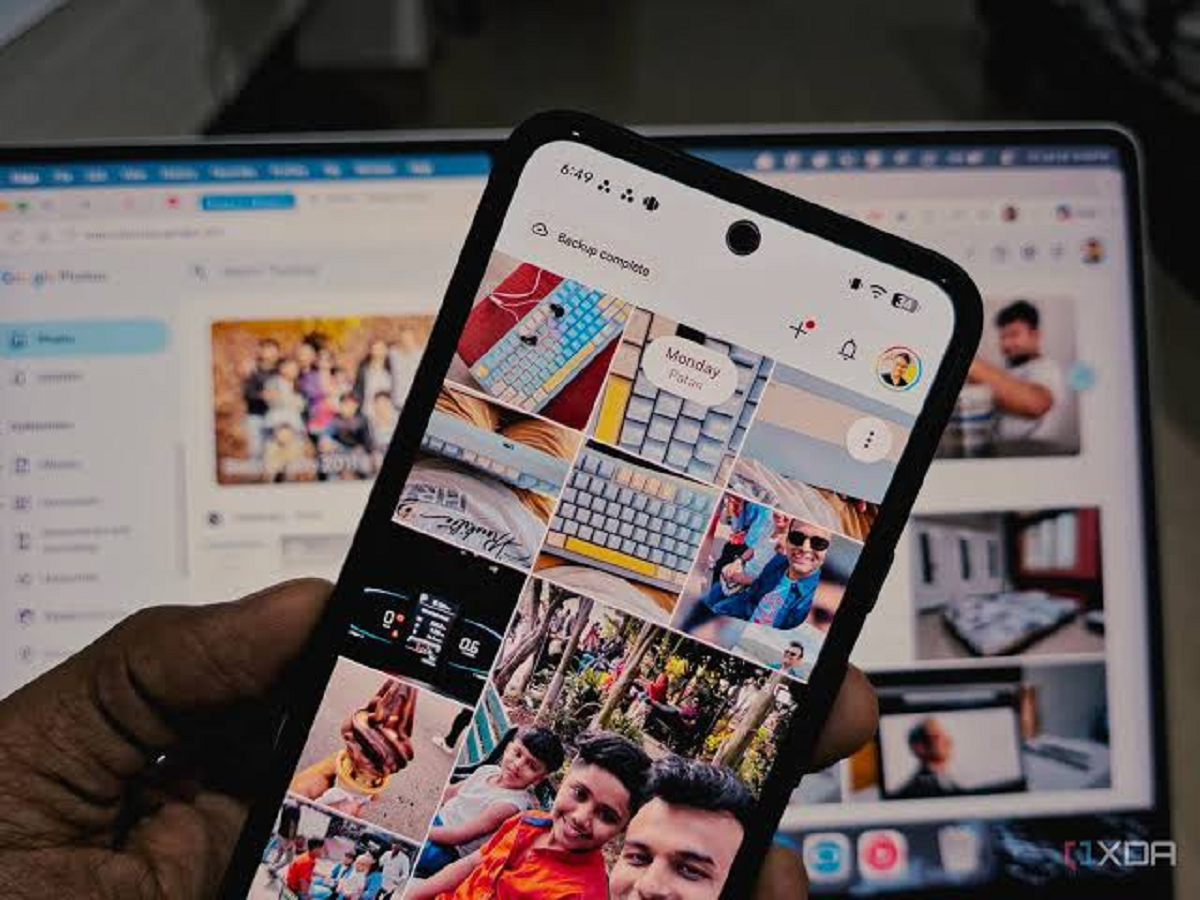
Google Photos is one of the most popular services for storing and organising photographs and videos. It allows users to access their memories across devices, create albums and search for specific pictures without manually browsing through thousands of files.
However, Google accounts come with 15 GB of free storage shared across Google Photos, Google Drive and Gmail. Once this space gets exhausted, uploading new photographs and videos can become difficult.
Instead of immediately purchasing additional storage, you can try these seven useful tricks to manage your existing space.
1. Check What Is Consuming Your Google Storage
Before deleting anything, identify which service is using the most storage.
Open Google One or visit the Google storage management page to review your usage across Photos, Drive and Gmail.
This will help you understand whether large videos, email attachments or backed-up photographs are consuming most of your available space.
2. Delete Unnecessary Large Videos
Videos generally consume considerably more storage than ordinary photographs, particularly when recorded in high resolution.
Open Google Photos and review your largest videos. Remove duplicate recordings, unwanted screen recordings and clips you no longer need.
Before deleting anything important, make sure you have another copy saved if required.
3. Remove Blurry and Duplicate Photographs
Over time, your gallery may accumulate blurry photographs, screenshots, repeated images and accidental pictures.
Google Photos provides tools and suggestions that can help identify certain unwanted files.
Review these suggestions carefully and delete only the images you no longer need.
4. Empty the Trash Folder
Deleting photographs does not necessarily free up storage immediately because backed-up items may remain in the Trash for a limited period.
If you are certain that you no longer need the deleted files, you can empty the Trash manually.
Remember that permanently deleted photographs cannot be recovered through Google Photos.
5. Reduce the Size of Existing Backups
Google Photos offers a Storage Saver option that stores backed-up photographs and videos using reduced file sizes.
For eligible existing uploads, Google also provides a storage recovery option that can convert certain original-quality backups to Storage Saver quality.
Before using this feature, understand that the process may reduce image or video quality and cannot necessarily be reversed.
6. Stop Backing Up Unnecessary Folders
Your smartphone may automatically back up photographs from WhatsApp, screenshots, downloads and other application folders.
You can review which device folders are included in Google Photos backup.
Open Google Photos, go to Settings and check the Backup settings. Disable backup for folders that do not contain important photographs.
7. Download Important Memories Before Deleting Them
If you want to remove photographs from Google Photos but keep a copy, download them to your computer or another trusted storage location first.
Google Takeout can also help you export your Google Photos data.
Always verify that your downloaded files are complete and accessible before deleting the original cloud copies.
Important: Understand the Difference Between Device Storage and Google Storage
Your phone's internal storage and Google account storage are two different things.
Deleting a photograph from Google Photos while backup and synchronisation are enabled may also remove it from other synced devices.
If your goal is to free up phone storage while retaining backed-up photographs in the cloud, use the Google Photos option called Free up space, after confirming that your files have been successfully backed up.
Final Words
Running out of Google Photos storage does not always mean you need to purchase a subscription immediately. Removing unnecessary videos, managing automatic backups and reviewing large files can help you make better use of your existing storage.
Most importantly, never permanently delete important photographs without checking whether you have another copy. A few minutes of storage management can help keep your digital memories organised and accessible.