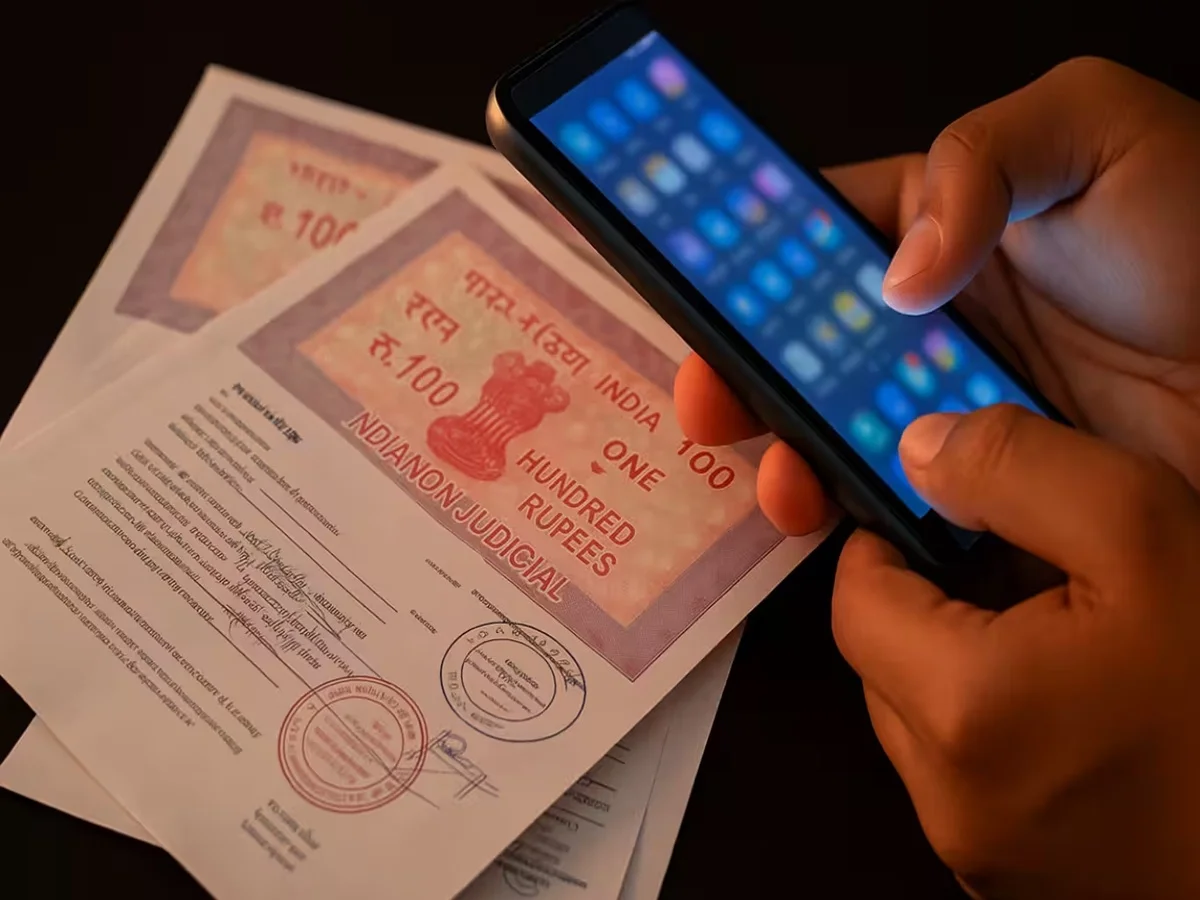
Keeping documents digitally has become increasingly important these days. Whether it's a college form, a government document, a bill, or important documents, scanning them and saving them as PDFs is often useful. Fortunately, you don't need to download a separate app to scan documents. Both Android and iPhone support easy document scanning.
How to scan documents on an Android phone?
You can use Google Drive to scan documents on an Android phone. Many Android phones come with Google Drive built-in.
First, open Google Drive and tap the Camera or Scan option. Place the document you want to scan on a clean, flat surface. Point your phone's camera at the document and take a photo.
What to do after scanning?
After scanning a document, Google Drive gives you several editing options. You can crop the document's edges appropriately. If the scan isn't clear, you can also take a second photo.
You can also change the color of the document as needed. When you feel the scan is perfect, tap the Save option. Your document will be saved to Google Drive as a PDF file.
Scan documents on your iPhone without an app.
If you use an iPhone, there's no need to download a separate app. You can scan documents using the Notes app on your iPhone.
To do this, open the Notes app and create a new note. Tap the camera or attachment icon and select the Scan Documents option. Then, hold the document in front of the camera. The iPhone can automatically recognize the document's edges and scan it.
After the scan is complete, you can save it as a PDF and if needed, you can also share it via email, WhatsApp or any other medium.
Tips for better document scans:
To get a good quality scan, place the document on a flat surface and use adequate lighting. Keep the camera lens clean and avoid shaking the phone excessively while scanning.
PC: Navbharat times