TECH
Your Android Phone Has a Hidden Notification Feature: Turn This Setting On to Stop Notification Overload
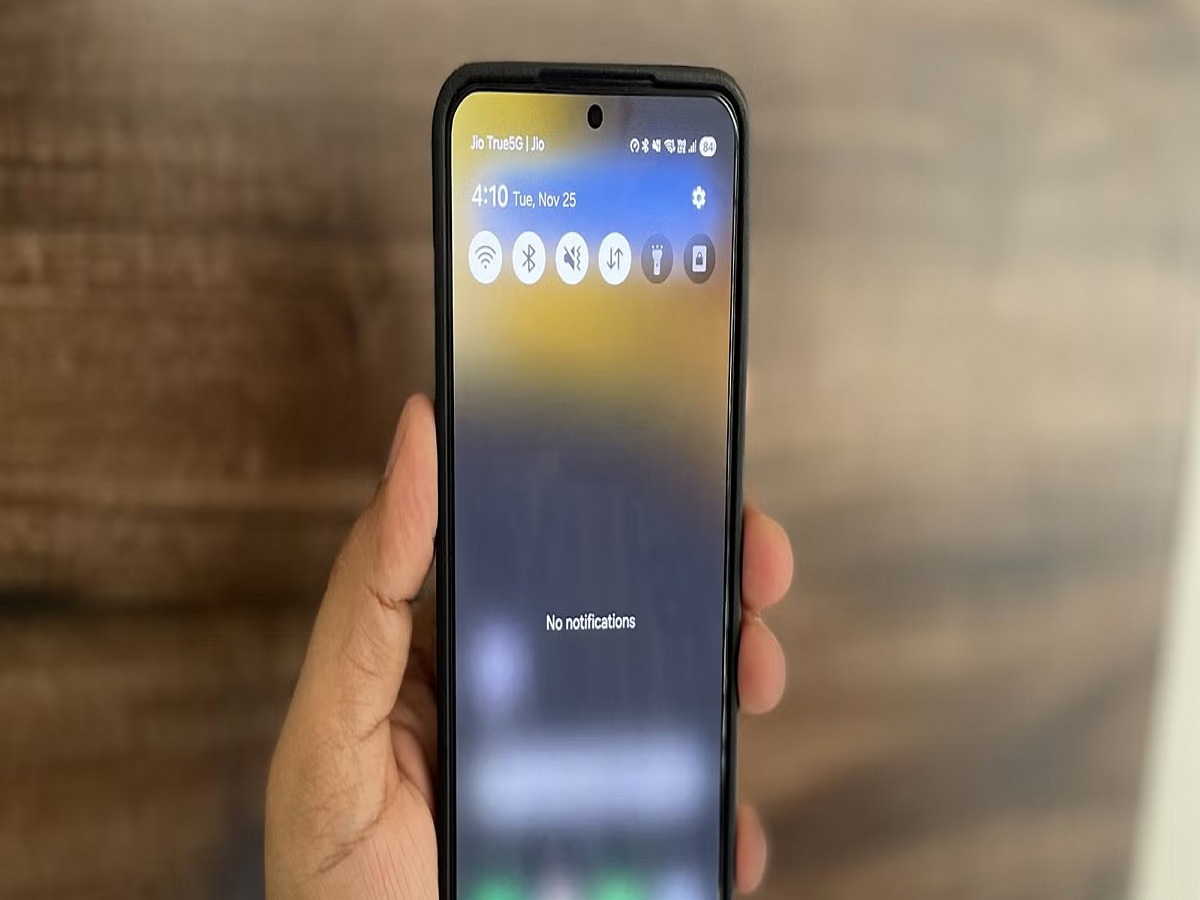
If your Android phone is constantly buzzing with messages, shopping alerts, social media updates and promotional notifications, there is a useful feature that can help you regain control. Notification History lets you check notifications that you accidentally dismissed and review alerts received earlier in the day. Google says the feature is available on some Android devices, although the exact settings can vary depending on the phone manufacturer.
How to Turn On Notification History
The process is simple on supported Android phones.
- Open Settings on your phone.
- Tap Notifications.
- Look for Notification history.
- Turn the feature on.
Once enabled, your phone can keep a record of recent notifications, including notifications you may have accidentally swiped away.
The exact location of the option can differ between Samsung, Google Pixel, OnePlus, Xiaomi, Motorola and other Android smartphones.
Accidentally Dismissed an Important Message?
This is where Notification History becomes particularly useful.
Suppose a message appears while you are using another application and you accidentally swipe it away. Instead of trying to remember which app sent the notification, you can open Notification History and check recently dismissed alerts.
Google says the feature can show recently dismissed notifications and the day's notification history on supported devices.
Another Trick: Reduce Notification Noise Automatically
Some Android phones also offer Notification Cooldown.
This feature is designed to reduce interruptions when a large number of notifications arrive within a short period. When enabled, Android can reduce notification sounds and pop-ups during a sudden flood of alerts, while calls, alarms, priority conversations and emergency alerts remain exceptions.
To check whether your phone supports it:
Settings → Notifications → Notification Cooldown
If you receive dozens of alerts whenever you reconnect to the internet or turn off Airplane Mode, this setting can be particularly useful.
Stop Individual Apps From Bombarding You
You don't have to disable all notifications just because one or two apps are annoying.
Android allows users to control notification settings for individual applications. You can decide which apps are allowed to send alerts and which types of alerts should appear.
For example, you can keep notifications enabled for messaging and banking applications while disabling promotional notifications from shopping or entertainment apps.
New AI-Based Notification Tools Are Also Arriving
Google is also expanding AI-powered notification management on supported Pixel phones.
The Notification Summaries feature can provide summaries of unread messages, while Notification Organizer can group certain notifications into categories such as promotions and news. Google's support documentation says these features are available on Pixel 9 and later, excluding A-series models, with specific language and regional requirements.
This can be useful if you receive long message conversations and don't want to open every notification individually.
Don't Forget the Battery-Saving Trick
Notifications aren't usually the biggest source of battery drain, but Android provides several settings that can help extend battery life.
Google recommends reducing screen brightness, shortening screen timeout, restricting apps that use excessive battery and enabling Adaptive Battery where available. Battery Saver can also limit background activity when you need additional battery life.
One More Useful AI Shortcut
If your Android phone supports the Gemini mobile app, you can also use natural-language commands to perform certain device actions.
Google says Gemini can manage or control supported device apps and settings, and can perform multiple actions from a single request. For example, users can ask it to adjust volume and turn on Battery Saver in one command.
The Bottom Line
You don't need to install another application to manage notification overload on many Android phones. Notification History, Notification Cooldown and app-specific notification controls can make your phone considerably less distracting.