TECH
Tech: Are apps using your microphone and camera without your permission? Check and stop them immediately
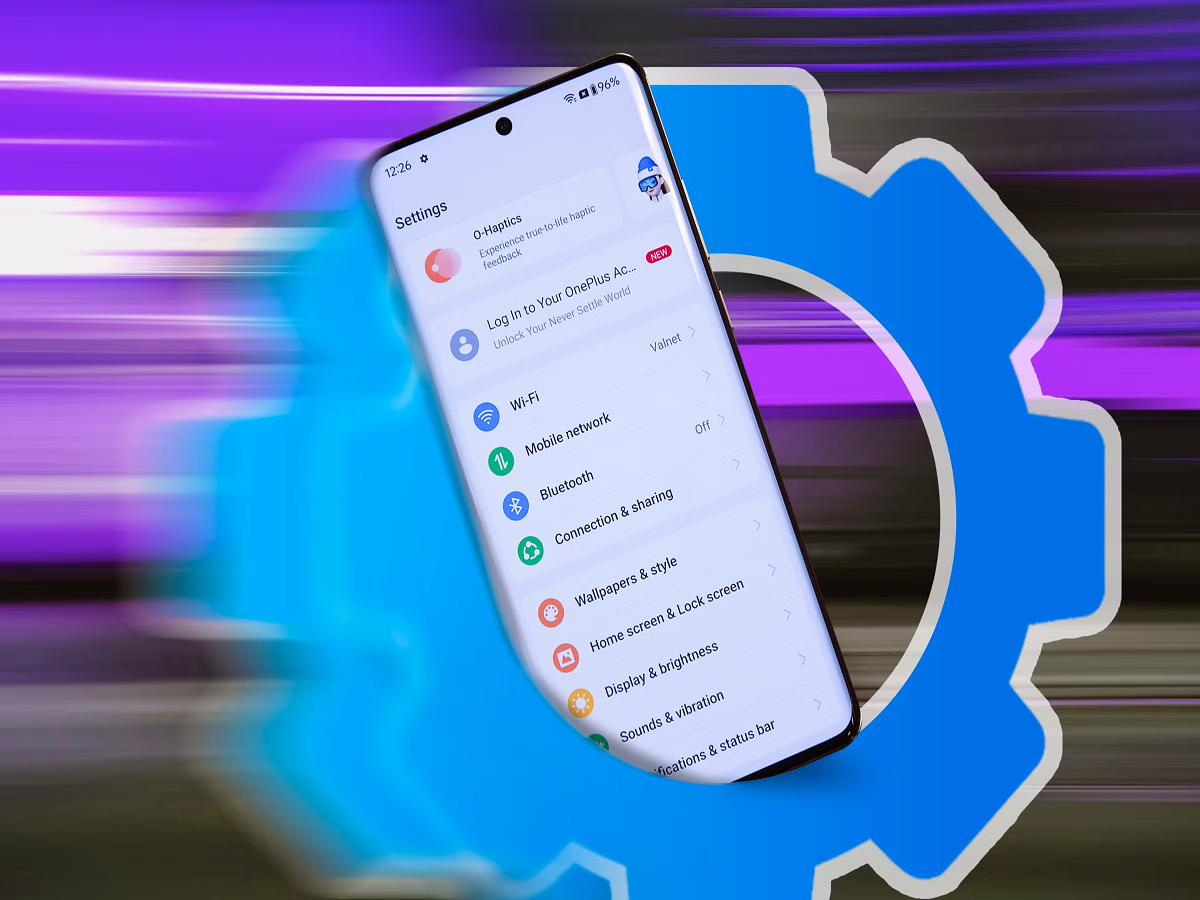
Smartphones have become an integral part of our lives today. The apps on them monitor our every move. We often download apps that silently access our phone's camera and microphone in the 're concerned about your privacy and want to ensure no app can spy on you, quickly check your phone's settings using these simple methods.
How to tell if an app is using your camera or mic?
Modern Android and iPhone devices have specific privacy-conscious indicators:
Color dot indicator: Whenever an app is using your phone's camera or microphone, a small green or orange light flashes in the top corner of the screen.
Check notifications: If this light is on while you're not using your phone, it could be that an app in the 'display:inline-block'>How to disable camera and microphone access:
You can easily control which apps are allowed to access the camera or microphone and which are not by going to your phone's settings:
1. For Android phones:
Go to Settings on your phone.
After this click on the option of Privacy or Privacy Dashboard.
Here you'll find separate options for Camera and Microphone. Click on them to see which apps have permissions for these.
Set the permissions of any app that you suspect or don't need to 'Don't allow' or 'Deny'.
2. For iPhone:
Open your iPhone's Settings.-
Scroll down and tap Privacy & Security.
Here you will see the options of Camera and Microphone, click on them.
You will see a list of all the apps that have this access.
Turn off the toggle next to the app you don't want to allow.
Useful tips to stay safe:
Always set permissions to 'While Using': While giving camera or location access to any app, always choose 'While Using the App' instead of 'Always Allow'.
Grant temporary permissions: Android has an "Only this time" option, which allows the app to use the feature only once.
Delete unnecessary apps: Immediately uninstall apps from your phone that you haven't used for months.
PC: how to geek