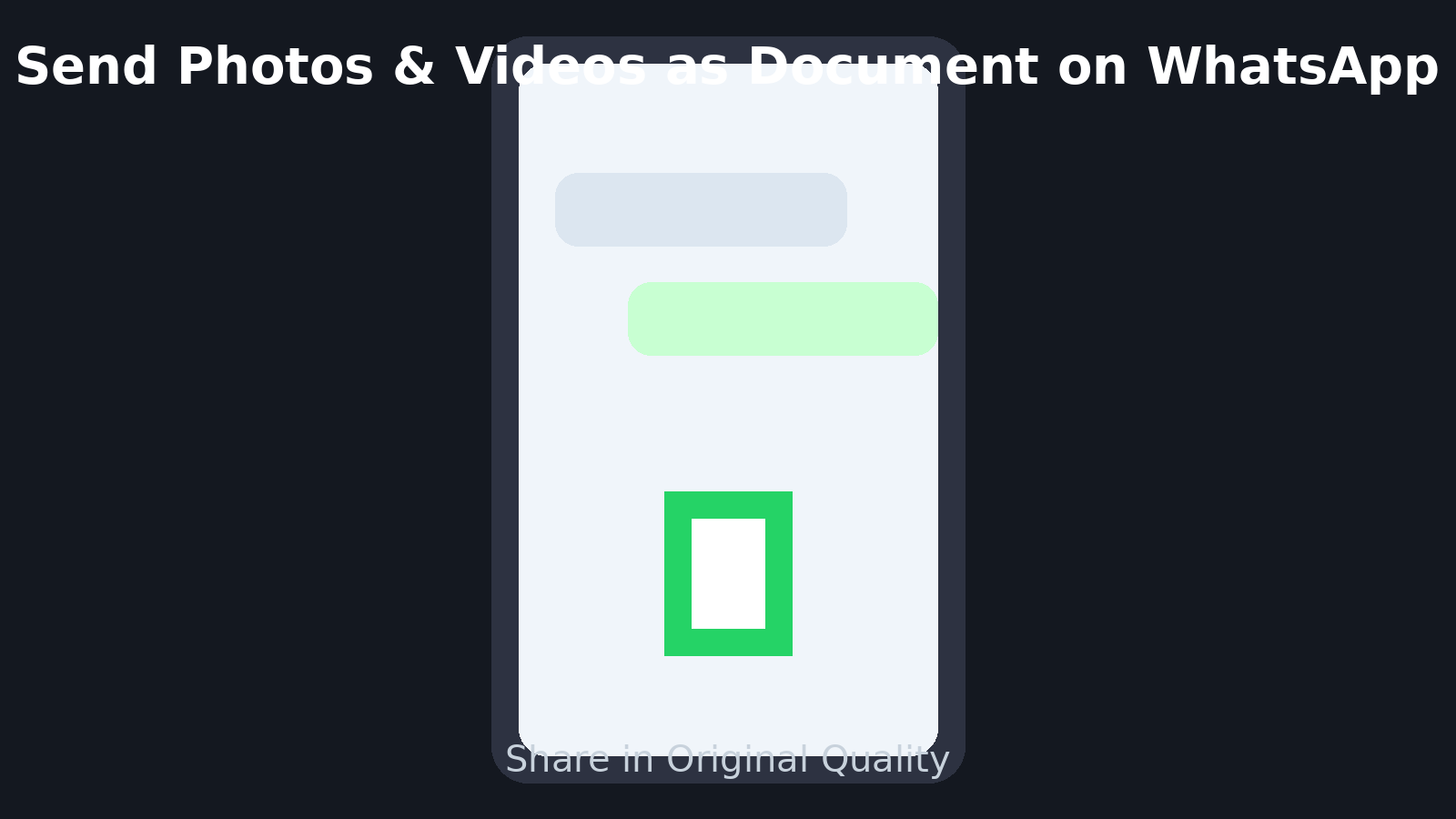
WhatsApp continues to improve the way users share media, and iPhone users now have a powerful new option. The latest update allows iOS users to send photos and videos without losing quality by using the Document feature. Earlier, media files were automatically compressed when sent normally through chat. With this upgrade, you can share files in their full original resolution.
This feature was previously available on Android and has now expanded to iPhone users, making high-quality sharing easier than ever. If you want to preserve clarity while sending images or videos, follow the guide below.
📱 Why Send Media as a Document?
When you send photos or videos the usual way on WhatsApp, the app compresses them to save data and speed up delivery. However, using the Document option keeps the file untouched.
Key benefits:
-
✅ Original quality preserved
-
✅ No compression loss
-
✅ Better for professional or important media
-
✅ Supports large file sizes
✅ Step-by-Step: How to Send Photos and Videos as Documents on iPhone
Follow these simple instructions:
Step 1: Update Your WhatsApp App
First, make sure your WhatsApp is updated.
-
Open the App Store on your iPhone
-
Search for WhatsApp
-
Tap Update if available
Using the latest version ensures the feature works properly.
Step 2: Open the Chat
-
Launch WhatsApp
-
Open the individual or group chat where you want to send the file
Step 3: Tap the “+” Icon
-
Look at the bottom-left corner of the chat screen
-
Tap the “+” (plus) icon next to the message box
-
A menu will appear
Select Documents from the list.
Step 4: Choose Photo or Video
Inside the Documents section:
-
Tap Choose Photo or Video
-
Browse your gallery
-
Select the file you want to send
Step 5: Send the File
-
After selecting the media
-
Tap the Send button
Your photo or video will now be delivered in original, uncompressed quality.
⚠️ Important Things to Keep in Mind
Before using this feature regularly, note these key points:
📦 File Size Limit
WhatsApp currently allows document sharing up to 2GB per file. Anything larger cannot be sent.
🖼️ One File at a Time
You can send only one photo or video at a time using this method. Bulk selection is not supported yet.
⏳ Longer Upload Time
High-quality files are larger, so:
-
Upload may take longer
-
Receiver download time may increase
📶 Higher Data Usage
Because there is no compression, both sender and receiver will use more mobile data or Wi-Fi bandwidth.
💾 Storage Impact
Original-quality media consumes more storage space on both devices.
🧠 Final Thoughts
The ability to send photos and videos as documents is a major upgrade for iPhone users who care about media quality. Whether you are sharing professional images, important recordings, or memorable moments, this feature ensures your files reach recipients exactly as intended.
By following the steps above and keeping the limitations in mind, you can make the most of WhatsApp’s improved media-sharing capabilities and enjoy crystal-clear file transfers every time.