Instagram offers a powerful yet often overlooked feature called Alt Text, which allows users to add descriptive captions to images for accessibility and search purposes. Originally designed to help visually impaired users understand visual content through screen readers, alt text has also become an important tool for improving content discoverability and engagement. 📸✨
If you want your posts to reach a wider audience while making your profile more inclusive, learning how to add or modify alt text is essential.
What Is Alt Text on Instagram?
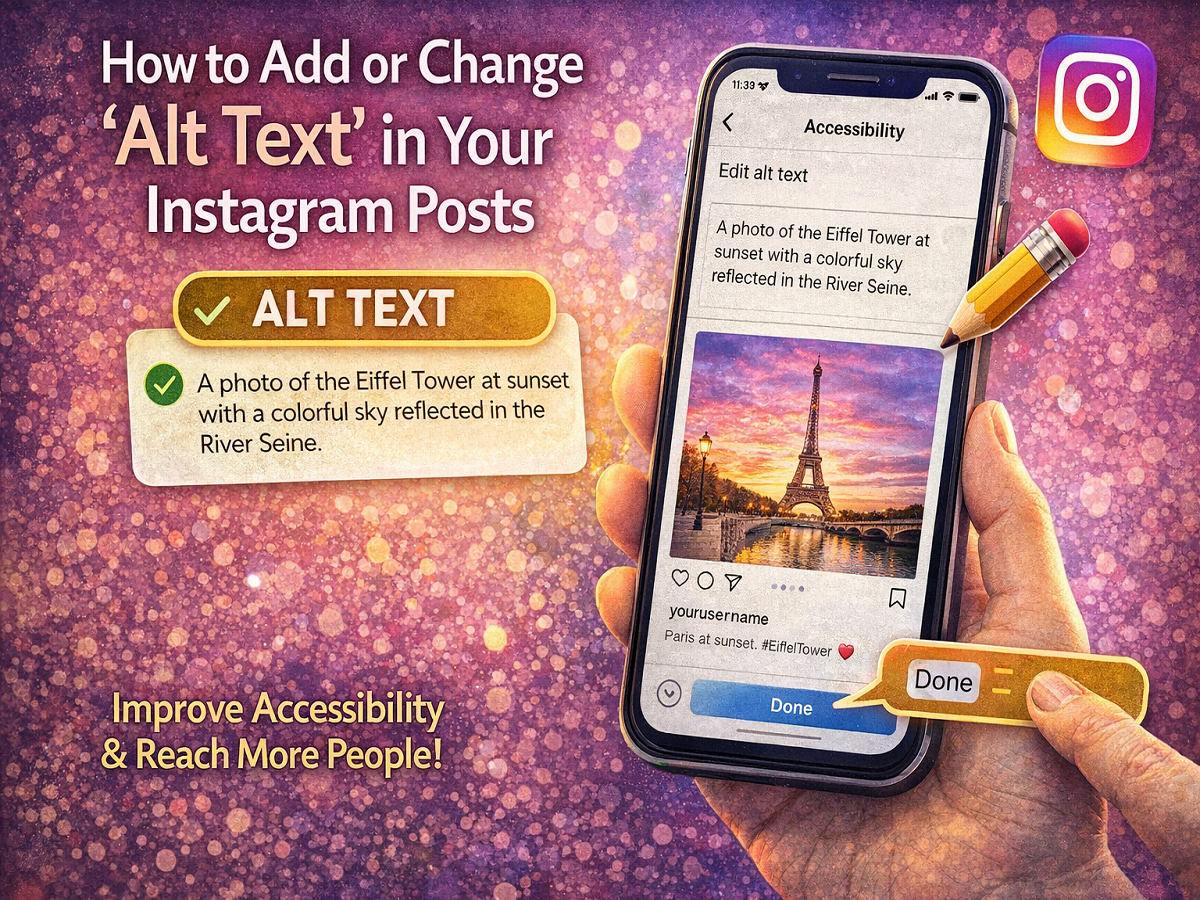
Alt text (short for “alternative text”) is a brief written description that explains what appears in a photo. It is not visible on the post itself but can be accessed by assistive technologies or when images fail to load properly.
Instagram automatically generates alt text using image recognition technology. However, automated descriptions often miss important context, details, or intent. Writing your own custom alt text ensures your content is accurately represented.
Alt text serves several purposes:
-
Helps visually impaired users understand images via screen readers 🧑🦯
-
Improves accessibility compliance
-
Enhances searchability within Instagram and search engines 🔍
-
Provides context when images load slowly or fail to display
-
Expands your potential audience
Why Adding Alt Text Matters
Accessibility is becoming a major focus across digital platforms. By including alt text, creators and businesses demonstrate inclusivity while also boosting content performance.
Custom descriptions can highlight:
-
Key objects or people in the image
-
Actions taking place
-
Setting or mood
-
Text visible within the photo
-
Important details not obvious from the caption
This additional layer of information can make posts more meaningful for users who rely on assistive tools.
How to Add Alt Text to a New Instagram Post
You can include alt text while uploading a photo or carousel post. Follow these steps:
-
Open the Instagram app on your smartphone.
-
Tap the Create (+) button to upload a photo.
-
Choose your image and apply edits or filters if desired.
-
Tap Next to proceed to the caption screen.
-
Scroll down and select Advanced Settings (sometimes under Accessibility).
-
Tap Write Alt Text.
-
Enter a clear description of the image.
-
Return and tap Share to publish your post.
Your custom alt text will now replace the automatic description.
How to Edit Alt Text on an Existing Post
Instagram also allows you to update alt text after publishing.
Steps to modify it:
-
Open the post you want to update.
-
Tap the three-dot menu in the top corner.
-
Select Edit.
-
Choose Edit Alt Text or navigate to the Accessibility section.
-
Update the description as needed.
-
Tap Done to save changes.
This flexibility is useful if you want to improve clarity or optimize older posts for accessibility.
Tips for Writing Effective Alt Text
For best results, keep descriptions:
-
Clear and concise ✍️
-
Focused on essential details
-
Objective rather than promotional
-
Free of hashtags or emojis
-
Around one or two sentences long
Example:
Instead of writing “Beautiful sunset!!! ,” describe what’s actually visible:
“Orange sunset over a calm beach with silhouettes of palm trees.”
Final Thoughts
Alt text may seem like a small addition, but it plays a significant role in making social media more inclusive and discoverable. By taking a few extra seconds to describe your images, you not only support users who depend on screen readers but also improve how your content is understood by algorithms and search systems.
Whether you’re an influencer, brand, or casual user, adding meaningful alt text can enhance engagement while ensuring your posts are accessible to everyone.