Browsing the internet often means opening dozens of tabs at the same time. Whether you are researching for work, comparing products online, or reading multiple articles, it’s easy for your browser to become crowded with tabs. Managing these tabs efficiently can significantly improve productivity and help you quickly return to important pages.
To address this problem, Google Chrome introduced a feature called Tab Groups. This tool allows users to organise tabs into labelled groups based on topics or tasks. For example, you can keep all research tabs under one group and shopping pages under another.
However, a common issue arises when users close the browser. In many cases, the grouped tabs disappear after the session ends. To solve this problem, Chrome offers an experimental option that allows users to save tab groups, ensuring they remain available even after restarting the browser.
Below is a step-by-step guide explaining how to enable Chrome’s tab group saving feature.
What Are Chrome Tab Groups?
Tab Groups are a productivity feature designed to help users manage multiple open tabs more efficiently. Instead of scrolling through dozens of tabs, you can group related tabs together under a single label.
For example:
-
Work Research – Tabs related to articles, reports, or references
-
Shopping – Product pages and online stores
-
Entertainment – Videos, music, and social media pages
Grouping tabs makes it easier to switch between different tasks without losing track of open pages.
Why Saving Tab Groups Is Useful
Saving tab groups provides several advantages:
Continue your work later
You can close the browser and return to the same tab groups later.
Better organisation
Your browser remains structured and clutter-free.
Improved productivity
Quickly access the tabs related to specific projects or tasks.
How to Enable Tab Group Saving in Chrome
Currently, the feature is available through Chrome’s experimental settings called Flags.
Follow these steps to activate it:
Step 1: Open Chrome Flags
Launch Google Chrome on your computer.
Step 2: Enter the Flags Address
In the address bar, type:
chrome://flags/#tab-groups-save
Press Enter.
Step 3: Enable Tab Groups Save
Look for the option called Tab Groups Save.
Click the dropdown menu next to it and select Enable.
Step 4: Restart Chrome
After enabling the feature, restart your browser for the changes to take effect.
How to Save a Tab Group
Once the feature is enabled, you can save tab groups directly.
Steps:
-
Create a Tab Group by right-clicking a tab and selecting Add tab to new group.
-
Give the group a name and color.
-
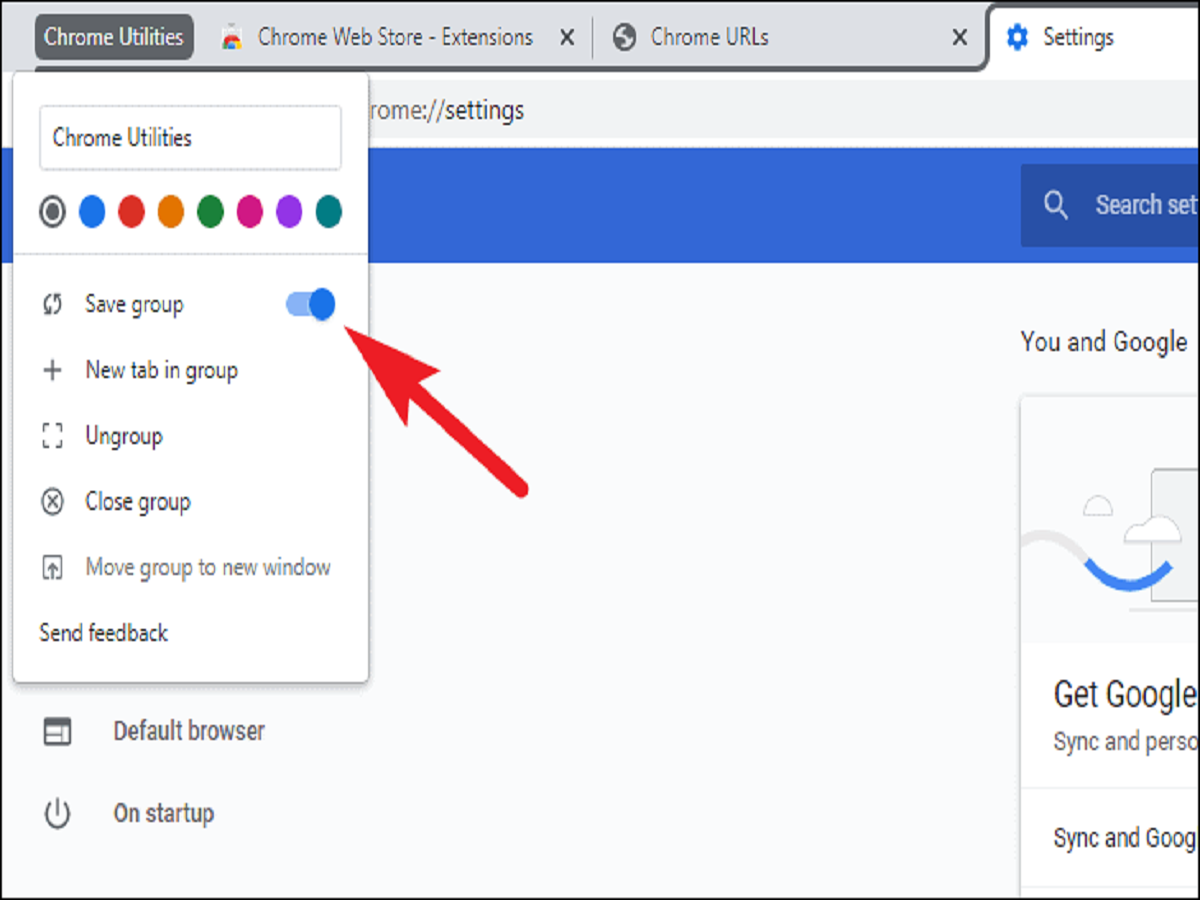
Click on the group label.
-
Turn on the Save Group toggle.
The tab group will now be saved and remain available even if the browser is closed.
Things to Remember
-
The feature is currently available in Chrome’s experimental settings.
-
You must enable the Save Group toggle for each tab group individually.
-
Restarting Chrome is required after enabling the feature.
Final Thoughts
Tab Groups are one of the most useful productivity features in Chrome. By enabling the tab group saving option, users can organise their browsing sessions more efficiently and return to important tabs without losing track of them.
Whether you are working on research, online shopping, or multitasking across multiple projects, saving tab groups can help make your browsing experience smoother and more organised.