Messaging platforms continue to evolve by introducing new ways for users to communicate beyond simple text messages. One of the latest additions to WhatsApp is the Voice Status feature, which allows users to share short audio clips directly as their status updates.
Previously, WhatsApp users could only share text, photos, videos, or GIFs in their status updates. With the introduction of voice status, users can now record and upload voice notes as status messages, providing a more personal and expressive way to communicate with contacts.
If you are using an Android smartphone and want to try this feature, here is a detailed guide explaining how voice status works and how you can share it on WhatsApp.
What Is WhatsApp Voice Status?
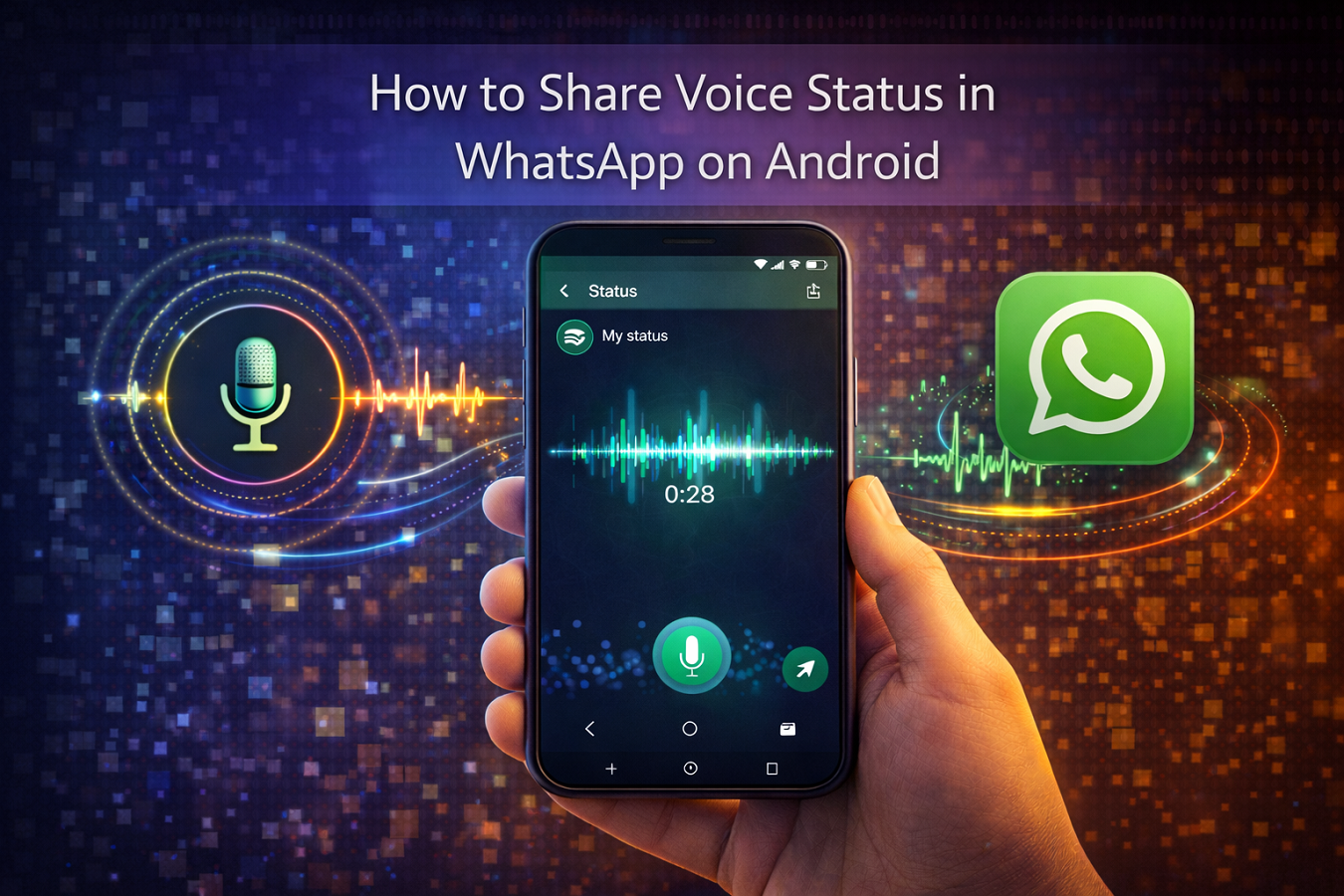
Voice Status is a feature that enables users to upload voice recordings as status updates. Instead of typing a text message or uploading an image, users can record a short audio clip and share it with their contacts.
Some important highlights of this feature include:
-
Voice status updates can be up to 30 seconds long
-
Users can preview the recording before posting
-
Status updates are visible only to selected contacts based on privacy settings
-
Like other status posts, voice updates disappear automatically after 24 hours
This feature allows users to share quick audio messages, announcements, or thoughts with friends and family in a simple and engaging way.
Additional Status Features on WhatsApp
Along with the voice status feature, WhatsApp has introduced several other improvements to its status updates.
These include:
Emoji reactions:
Contacts can react to status updates using emojis.
Private audience selector:
Users can choose specific contacts who can view their status updates.
Custom "1954" data-end="1957"> When posting text or voice status updates, users can change the background color using the color palette available on the preview screen.
These updates are designed to make WhatsApp status updates more interactive and customizable.
Step-by-Step Guide to Share Voice Status on WhatsApp for Android
Follow the steps below to record and share a voice status update on your Android device.
Step 1: Open WhatsApp
Launch the WhatsApp application on your Android smartphone.
Step 2: Go to the Status Section
Swipe left or tap on the Status tab in the app.
Step 3: Tap the Pen Icon
Tap the pencil icon located in the bottom-right corner of the screen. This option allows you to create a text or voice status.
Step 4: Start Recording
Press and hold the microphone icon to begin recording your voice message.
Step 5: Finish the Recording
Release the microphone button once you finish recording. You will then see a preview of your voice status.
Step 6: Post the Voice Status
Tap the Send button to upload your voice recording as a status update.
Once shared, your voice status will be visible to contacts according to your privacy settings and will automatically disappear after 24 hours.
Tips for Using Voice Status Effectively
If you want your voice status updates to be more engaging, consider the following tips:
Keep the message clear:
Since voice statuses are limited to 30 seconds, try to keep your message concise.
Use a quiet environment:
Recording in a noise-free environment will improve audio clarity.
Review before posting:
Listen to the preview to ensure the recording sounds clear and understandable.
Final Thoughts
The introduction of voice status updates on WhatsApp offers a new way for users to communicate and share updates. By combining voice recordings with existing status formats like text, images, and videos, WhatsApp provides users with more creative ways to express themselves.
With just a few taps, Android users can record and share short audio updates with their contacts, making conversations more personal and engaging.