WhatsApp is one of the most-used messaging apps, but it can quietly consume several gigabytes of your phone's storage. Photos, videos, voice notes, documents, and forwarded files keep piling up over time, slowing down your device and leaving little room for other apps.
The good news is that you can reclaim a lot of storage without deleting your important conversations. Here are eight simple tricks to keep WhatsApp lightweight.
Use the Built-in Storage Manager
WhatsApp has a dedicated storage management tool that shows which chats and files are taking up the most space.
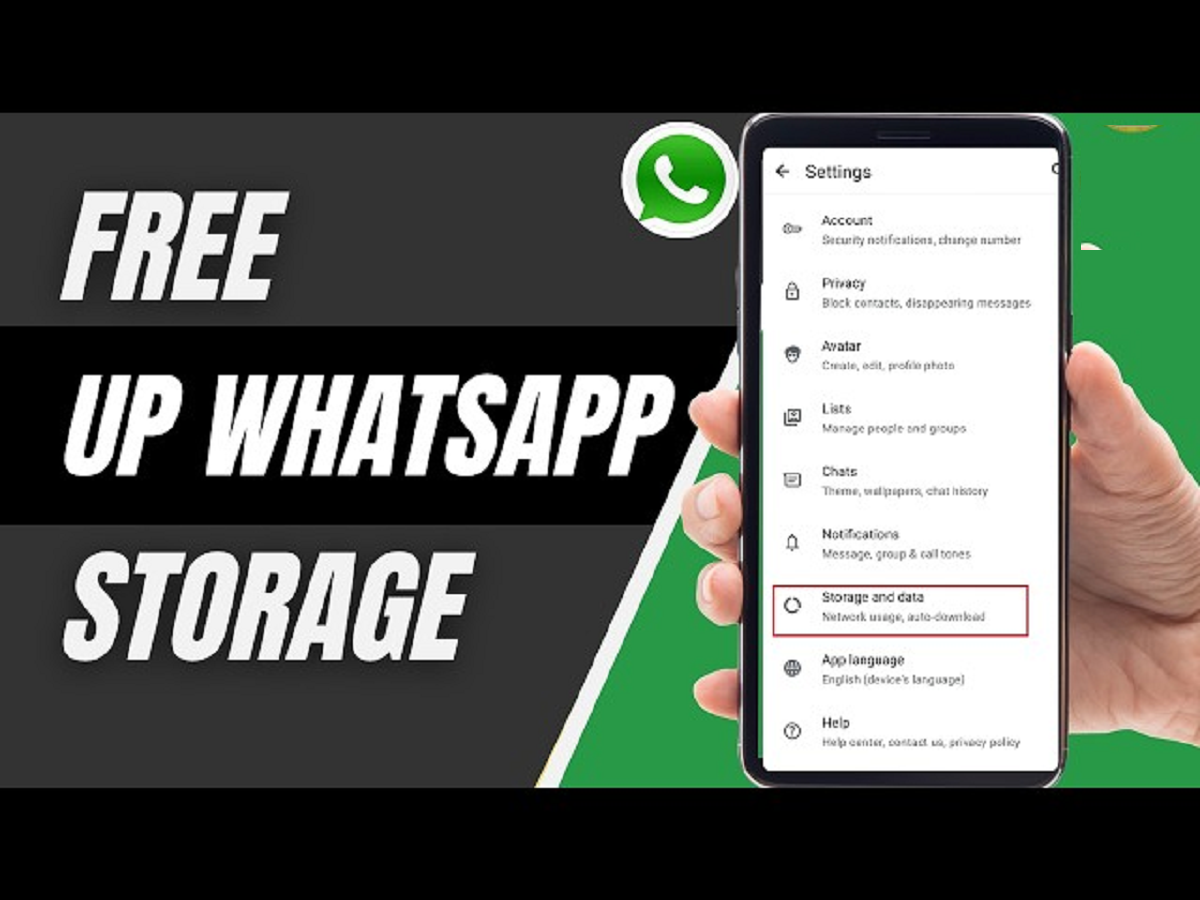
Open Settings > Storage and Data > Manage Storage to view large files and media that you can safely remove.
Delete Large Videos First
Videos usually consume far more storage than photos or documents.
Sort through large video files and delete the ones you no longer need. Removing just a few videos can free up hundreds of megabytes.
Turn Off Auto-Download
By default, WhatsApp may automatically download photos, videos, and documents.
Go to Settings > Storage and Data and disable automatic downloads for media you don't want saved automatically. This prevents unnecessary files from filling your storage.
Clear Media from Individual Chats
Some group chats receive dozens of images and videos every day.
Open the chat, tap the contact or group name, select Media, Links and Docs, and remove unwanted files while keeping your messages intact.
Avoid Saving Every Photo to Your Gallery
If every WhatsApp image appears in your phone's gallery, storage fills up quickly.
Disable Media Visibility for chats that frequently receive memes, forwards, or unnecessary pictures.
Leave Inactive Groups
Old groups often continue sharing media even if you rarely read the messages.
Leaving inactive groups not only reduces distractions but also prevents future media downloads.
Back Up Before Cleaning
Before deleting a large amount of media, create a fresh WhatsApp backup.
This ensures your chats remain safe if you accidentally remove something important.
Delete Duplicate Files
Many images and videos get shared multiple times across different chats.
Check your gallery or file manager for duplicate media and remove extra copies to recover valuable storage.
Bonus Tip: Review Storage Every Month
Instead of waiting until your phone runs out of space, make it a habit to review WhatsApp storage once a month. Regular cleaning takes only a few minutes and helps keep your phone running smoothly.
Final Thoughts
WhatsApp doesn't have to take over your phone's storage. By managing downloads, deleting unnecessary media, and reviewing storage regularly, you can free up significant space while keeping your important chats and memories safe. A few small changes can make your smartphone faster and more organized.