Does your iPhone battery drop rapidly even when you are not using your phone? Background activity, location services, screen brightness and certain connectivity features can contribute to battery consumption. While battery drain is sometimes caused by an ageing battery or a software issue, a few simple settings can help you identify and reduce unnecessary power usage.
Here are eight practical ways to improve your iPhone's battery life without compromising essential features.
1. Find Out Which Apps Consume the Most Battery
Before changing settings, identify what is actually draining your battery.
Open Settings, select Battery and review the battery usage information. Depending on your iOS version, you can see which apps consume the most power and whether their activity occurs on-screen or in the background.
If an app consistently uses significant battery despite limited use, check whether it needs an update or has unnecessary background activity.
2. Enable Low Power Mode
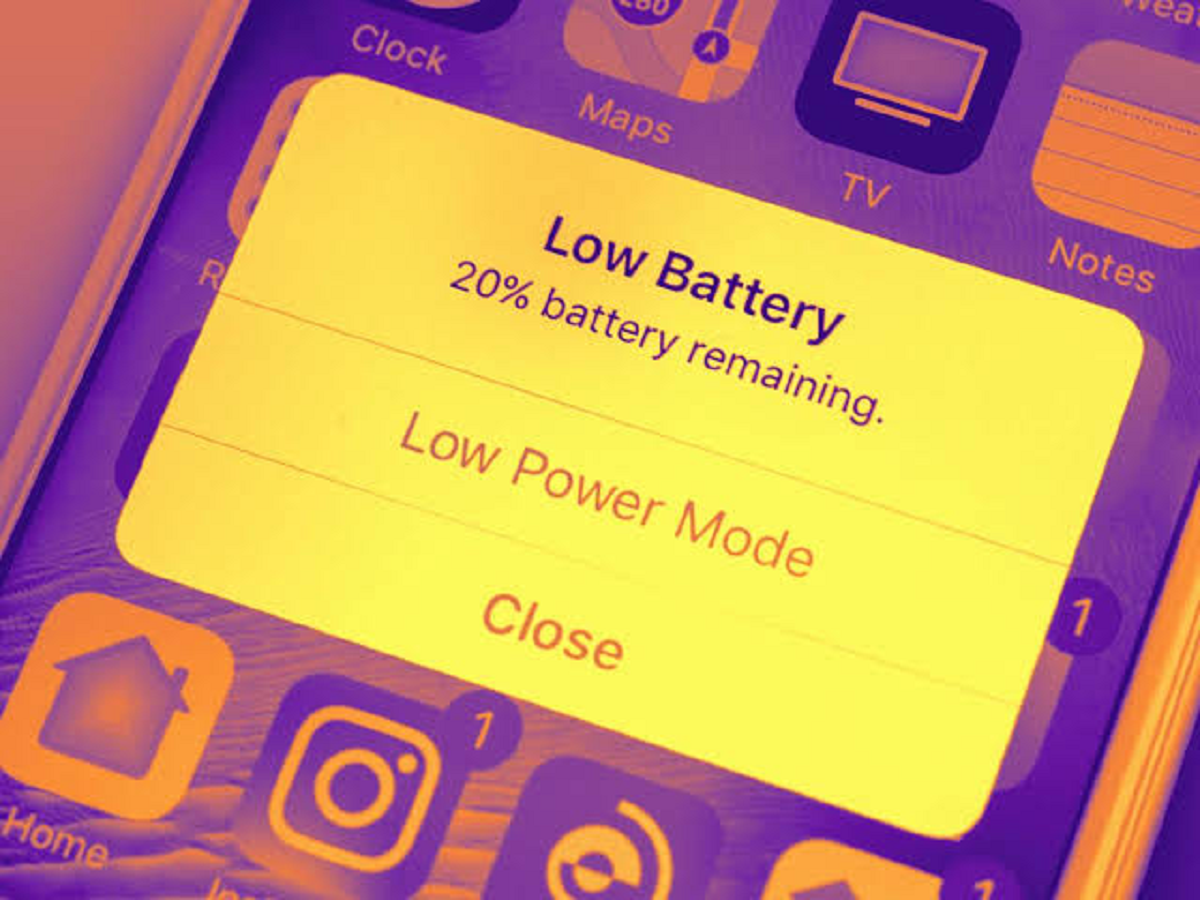
Low Power Mode reduces certain background activities to help your battery last longer.
To enable it, open Settings, select Battery and switch on Low Power Mode. On supported iPhones, you can also add the control to Control Centre for quicker access.
Some activities, such as automatic downloads and background app refresh, may be limited while the feature is active. This makes it useful when your battery is running low and you cannot charge your phone immediately.
3. Reduce Screen Brightness
The display can consume a considerable amount of battery, particularly when brightness remains high for long periods.
Open Control Centre and lower the brightness to a comfortable level. You can also enable Auto-Brightness under Settings, Accessibility, Display & Text Size.
A comfortable brightness level is generally more practical than keeping the display at maximum brightness throughout the day.
4. Review Location Access for Apps
Some apps need your location only when you actively use them, while others may request access in the background.
Go to Settings, Privacy & Security, then Location Services. Review the apps and change permissions where appropriate.
For apps that do not need continuous location access, consider selecting While Using the App. You can also disable Precise Location for services that only require an approximate location.
Avoid restricting location access for apps whose essential functions depend on it, such as navigation or location-based safety services.
5. Turn Off Unnecessary Background App Refresh
Background App Refresh allows supported apps to update content when you are not actively using them.
To review it, open Settings, select General and tap Background App Refresh. You can disable it for selected apps or turn it off entirely.
Keep in mind that restricting background refresh may delay some content updates. You can retain it for apps where timely updates are important.
6. Check Your Mobile Network Signal
Your iPhone may consume more power when it struggles to maintain a cellular connection, particularly in areas with weak coverage.
If you are in a location with poor reception, battery usage may increase as the phone works to maintain connectivity.
Where available, using reliable Wi-Fi can help. If you are in an area with no usable cellular service and do not need connectivity, Airplane Mode may reduce unnecessary network activity.
7. Review Notifications From Unnecessary Apps
Frequent notifications can repeatedly wake the display and draw your attention to your phone.
Open Settings and select Notifications. Review apps that send frequent alerts and disable notifications you do not need.
You can retain important alerts from banking apps, calls, messaging services and other essential applications while reducing unnecessary interruptions from less important apps.
8. Check Your Battery Health
If your iPhone continues to drain quickly after you adjust settings, the battery itself may be ageing.
On supported models, open Settings, select Battery and look for Battery Health or Battery Health & Charging. Review the maximum capacity and any service recommendations shown.
A reduced maximum capacity means the battery holds less charge than it did when new. If the phone indicates that the battery requires service, consider getting it checked by Apple or an authorised service provider.
Bonus Tip: Avoid Extreme Temperatures
High temperatures can affect battery health, while very cold conditions can temporarily reduce battery performance.
Avoid leaving your iPhone in direct sunlight or inside a hot car. If the device becomes unusually hot while charging or performing demanding tasks, allow it to cool in a safe environment.
Final Takeaway
If your iPhone battery drains too quickly, start by checking battery usage and health before disabling features at random. Low Power Mode, sensible screen brightness, selective location access and reduced background activity can help improve everyday battery life.
However, these changes cannot fully compensate for a severely degraded battery or resolve every software problem. If the battery drains unusually fast even when the phone is idle, check for recent software updates and consider professional support.