If your phone's gallery is constantly cluttered with WhatsApp photos and videos, you're not alone. By default, WhatsApp automatically saves media received in chats and groups, which can quickly consume storage space and make it harder to find your own pictures.
The good news is that you can stop this with a few simple settings.
Why Does WhatsApp Fill Up Your Gallery?
WhatsApp is set to automatically download and display photos, videos, and other media files you receive. While this makes it easy to access shared content, it also means:
-
Your phone storage fills up faster.
-
Your gallery becomes crowded with unnecessary images and videos.
-
Important personal photos become harder to find.
-
Media from chats may be visible to anyone browsing your gallery, raising privacy concerns.
Fortunately, WhatsApp lets you control both automatic downloads and gallery visibility.
Turn Off Automatic Media Downloads
If you don't want every photo and video to be downloaded automatically:
-
Open WhatsApp.
-
Go to Settings.
-
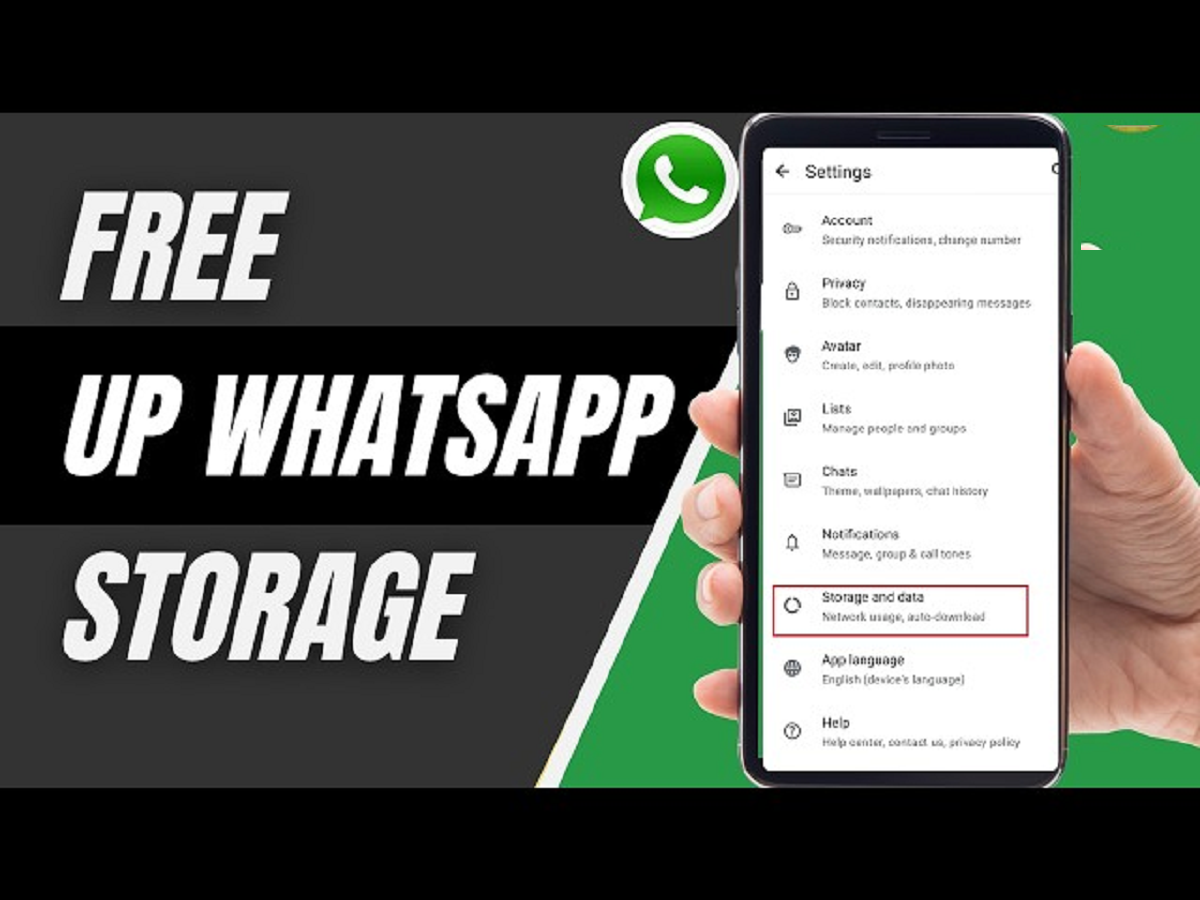
Tap Storage and Data.
-
Under Media Auto-Download, you'll find separate options for:
-
Photos
-
Audio
-
Videos
-
Documents
-
-
Choose whether these files should download over:
-
Mobile data
-
Wi-Fi
-
Roaming
-
-
Disable the media types you don't want to download automatically.
This helps reduce unnecessary downloads and saves valuable storage space.
Hide WhatsApp Media From Your Gallery
If you want to stop photos and videos from a specific chat or group from appearing in your phone's gallery:
-
Open the individual chat or group.
-
Tap the contact or group name at the top.
-
Select Media Visibility.
-
Turn the option Off.
After this, new media received in that chat will remain inside WhatsApp but won't appear in your phone's gallery.
You can repeat this process for any chat or group where you want more privacy.
Check Your Gallery After Updating the Settings
Once you've changed these settings, open your phone's gallery to verify the changes. New WhatsApp media should no longer appear automatically, helping you:
-
Keep your gallery organized.
-
Reduce storage usage.
-
Make personal photos easier to find.
-
Improve the privacy of media stored on your phone.
The Bottom Line
A couple of simple WhatsApp settings can make a big difference if you're running out of storage or tired of a cluttered gallery. By disabling automatic media downloads and turning off media visibility for selected chats, you can keep your phone cleaner, save storage space, and better protect your privacy.