TECH
See Wi-Fi Password in one click, Android and iPhone users can check it on their phone like this
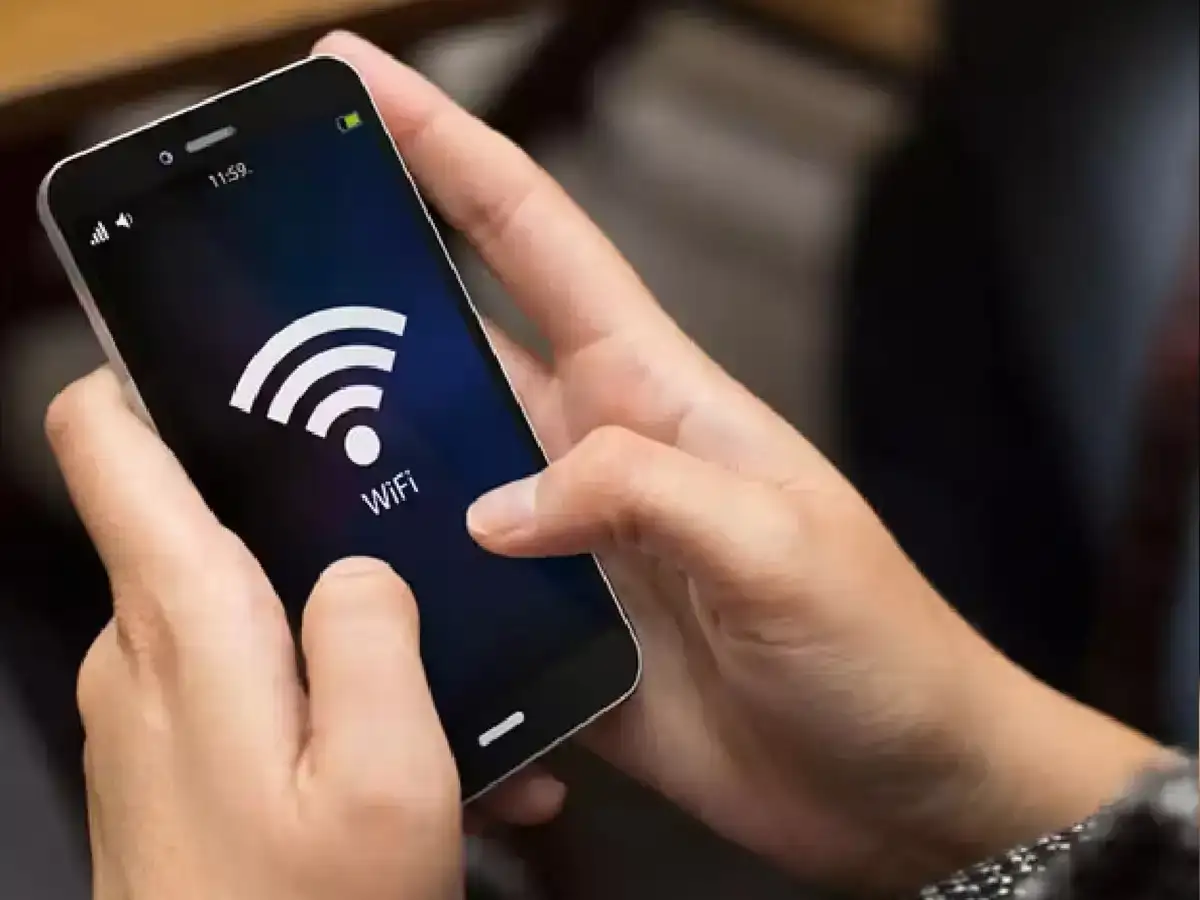
If you've forgotten a Wi-Fi network's password, there's no need to look at the back of your router or ask someone to find it out. If your phone is already connected to that Wi-Fi network, many smartphones can view or share its password through Settings.
How to View Wi-Fi Password on an Android Phone?
First, open your Android phone's Settings and go to the Wi-Fi or Network & Internet option. Now, tap the name of the Wi-Fi network your phone is connected to.
You may see a Share or QR Code option here. After tapping this, your phone may ask you to verify your identity with a PIN, Pattern, or Fingerprint.
After verification is complete, the Wi-Fi QR code will appear on the screen. Some Android phones also display the password on this screen. If the password isn't visible, you can scan the QR code with another phone to connect to the Wi-Fi network.
Keep in mind that the name of the settings and the way the password is displayed may vary from Android phone to Android phone.
How to View Wi-Fi Password on iPhone?
If you have an iPhone, go to Settings > Wi-Fi and tap the ⓘ icon next to the network your phone is connected to. Then tap the Password option.
After verification with Face ID, Touch ID, or a passcode, your Wi-Fi password may appear on your iPhone. You can also copy it.
PC: Navbharat times