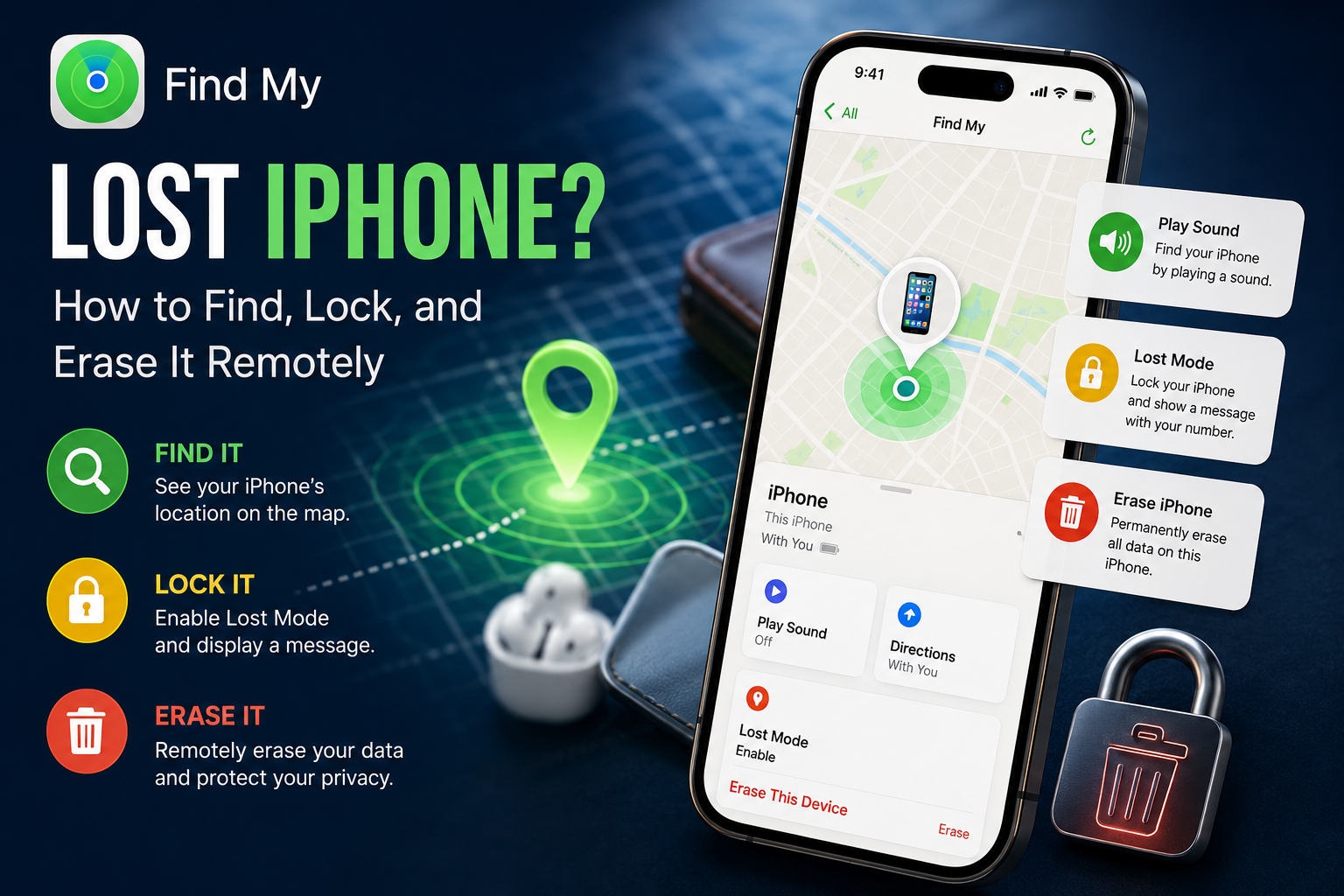
Losing an iPhone can quickly become stressful because modern smartphones store sensitive information such as banking apps, personal photos, passwords, emails, and private documents. To help users protect their devices and personal data, Apple offers a built-in security and tracking service called Find My. This feature allows users to locate a missing iPhone, lock it remotely, or erase all stored data if recovery seems impossible.
The Find My service combines device tracking and location-sharing tools into one system, giving Apple users better control over their devices during emergencies. Whether your iPhone has been misplaced at home, forgotten somewhere outside, or stolen, Find My can help you take immediate action from another Apple device or through iCloud on a browser. iCloud
What Is Apple’s Find My Feature?
Find My is Apple’s official tracking system designed to help users locate Apple devices connected to their Apple ID. The feature works with iPhones, iPads, Macs, AirPods, and other supported Apple products. Once activated, it allows users to track the live location of their device on a map and use additional security tools remotely.
One of the biggest advantages of the Find My network is that it can still help locate an offline iPhone using nearby Apple devices. Even if the lost device is not connected to mobile data or Wi-Fi, Apple’s crowdsourced Find My network may still provide its last known location.
However, for accurate real-time tracking, several conditions must already be enabled on the device:
- The iPhone should be powered on.
- Internet connectivity must be active.
- The same Apple ID should remain signed in.
- Find My must have been enabled earlier.
- Location Services should be turned on.
How to Locate Your Missing iPhone
If your iPhone goes missing, you can access the Find My service either through another Apple device or by opening the iCloud Find My page in a browser. You will need your Apple ID credentials to log in.
Steps to Track Your Lost iPhone
- Open the Find My app on another Apple device or visit iCloud Find My in a web browser.
- Sign in using the Apple ID connected to the missing iPhone.
- Tap on the “Devices” section.
- Select the lost iPhone from the device list.
- The current or last known location will appear on the map if available.
- Use the “Play Sound” feature if the iPhone is nearby but misplaced inside your home, office, or vehicle.
- You can also use navigation directions to reach the device location if it is farther away.
This feature becomes especially useful when users accidentally leave their phones at public places, restaurants, offices, or shopping malls.
How to Lock Your iPhone Remotely Using Lost Mode
If you suspect that your iPhone may have been stolen or accessed by someone else, enabling Lost Mode is one of the most important security steps. Lost Mode instantly locks the iPhone and prevents unauthorised access to your data.
Steps to Activate Lost Mode
- Open the Find My app or website.
- Choose the missing iPhone from the device list.
- Enable the “Lost Mode” option.
- Set or confirm your device passcode.
- Add a contact phone number and a custom message that will appear on the lock screen.
- Once activated, the iPhone becomes locked remotely and Apple Pay services are automatically disabled.
This feature increases the chances of recovering the device while also protecting sensitive information from misuse.
How to Erase Your iPhone Remotely
If recovery seems unlikely or if the device contains highly confidential information, users can remotely erase the iPhone using Find My. This action permanently deletes all stored data from the device.
Steps to Wipe Your Lost iPhone
- Open Find My and sign in with your Apple ID.
- Select the missing iPhone from the list.
- Choose the “Erase Device” option.
- Confirm your decision to start the reset process.
- The iPhone will automatically erase all stored data.
Even after the reset, Apple’s Activation Lock remains active. This means the device cannot be reactivated without the original Apple ID and password, making it harder for thieves to reuse or resell the phone.
Important Things iPhone Users Should Remember
Apple users should ideally enable Find My immediately after setting up a new device. Keeping location services active and maintaining updated Apple ID credentials can make device recovery much easier during emergencies.
Additionally, users are advised to create regular iCloud backups so important photos, files, and contacts remain safe even if the device needs to be erased remotely. With digital privacy becoming increasingly important, Find My remains one of Apple’s most valuable security features for protecting personal information and recovering lost devices quickly.