Most users are familiar with the password manager built into Google Chrome, but Android devices also come with a system-wide password manager linked to your Google account. This password manager securely stores your login credentials in the cloud, allowing you to access them across multiple devices.
Although the same backend powers password storage on desktop and mobile, the Android version has a different interface and works through Google Play services, making it available across apps and websites on your phone.
What Is Password Autofill on Android?
When password autofill is enabled, your Android device can automatically fill in saved usernames and passwords while signing in to apps or websites. This saves time and removes the need to manually type passwords each time you log in.
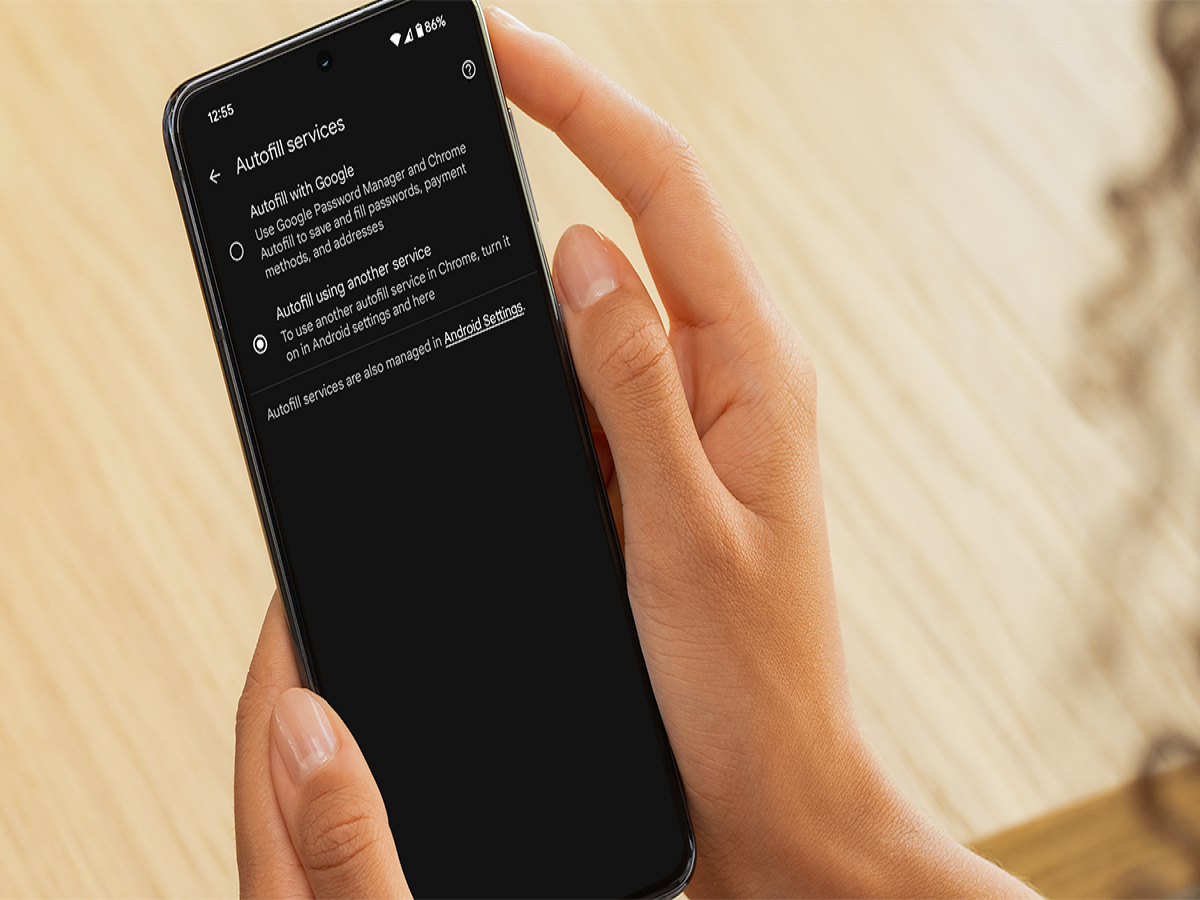
Android allows users to choose whether they want to use Google’s built-in password manager or a third-party app for autofill.
How to Change Password Autofill Settings on Android
You can easily switch your preferred password autofill service by following these steps:
Step 1
Open Settings on your Android smartphone.
Step 2
Scroll down and tap on Passwords & Security (the name may vary slightly depending on your device).
Step 3
Select Manage Passwords.
Step 4
Tap on Autofill Service.
Step 5
Choose your preferred password manager from the list (Google or a third-party app).
Once selected, the chosen app will ask for permission to autofill passwords when logging in to other apps and websites.
Important Things to Keep in Mind
-
Third-party password managers may not always work smoothly on all apps.
-
Some apps may have bugs or compatibility issues with autofill services.
-
Using the built-in password manager provided by Google often ensures better system-level integration and reliability.
Final Tip
For maximum security, always:
-
Use a screen lock (PIN, fingerprint, or face unlock)
-
Enable two-factor authentication for important accounts
-
Regularly review saved passwords and remove unused ones