TECH
Email Undo Trick: Sent an email by mistake? Unsend it immediately with this trick, and the other person won't be able to read it
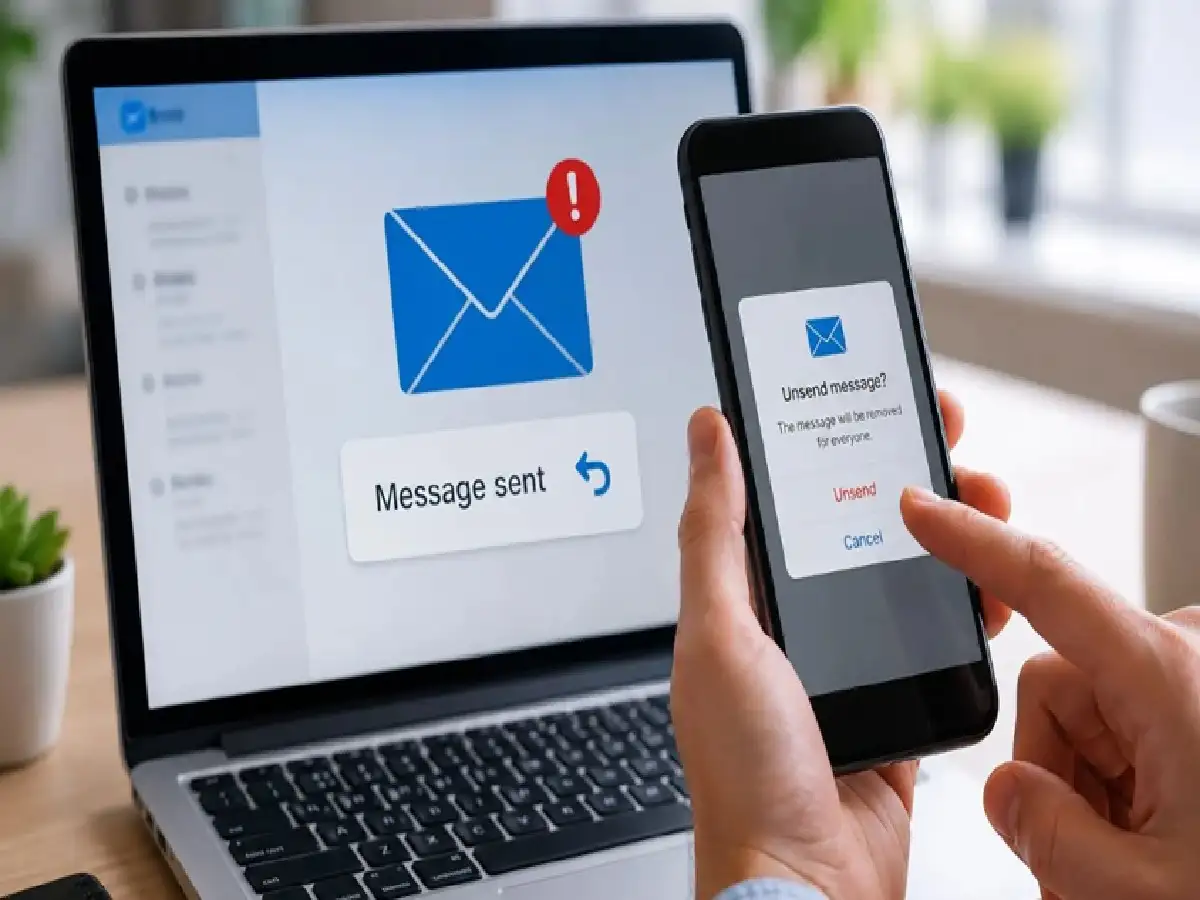
In today's digital age, email has become a vital part of our daily lives and office work. Whether it's important office work, file transfers, or business communication, email has become essential everywhere. However, in a hurry or rush, we often send the wrong email. Sometimes the wrong file is attached, sometimes an incomplete message is sent, or sometimes the email is sent to the wrong person. This leaves users confused. However, with a simple feature in Gmail, you can correct this mistake in just a few seconds.
What is Gmail's 'Undo Send' feature?
Google's Gmail platform has a very useful feature called "Undo Send." This feature allows you to recall a sent email within seconds. When you click the "Send" button, the email isn't immediately sent to the other person, but instead remains on hold in the system for a few seconds. Meanwhile, an option labeled "Undo" will appear at the bottom of the screen, allowing you to block the email.
How to increase the 'Undo Send' time limit? (Step-by-Step Process)
By default, this feature is only active for 5 seconds in Gmail. However, you can extend this time limit to 30 seconds. To do so, follow the steps below:
1. Login to Gmail: First, open your Gmail account on your computer.
2. Go to Settings: Click on the 'Gear' icon in the right corner of the screen.
3. View all settings: Then select the 'See all settings' option.
4. Find the Undo Send option: In the 'General' tab, you will see the 'Undo Send' option.
5. Select the time (cancellation period): Here, the drop-down menu will have options for 5, 10, 20, or 30 seconds. Choosing the 30-second option is more beneficial from a security perspective.
6. Save Changes: Finally, scroll down and click on 'Save Changes'.
Easy to use on mobile apps too
This feature isn't just limited to computers, but is also available on Gmail's mobile apps (Android and iOS). When you send an email from your mobile, 'Sending' appears at the bottom left of the screen, followed by an 'Undo' option. Once you tap this, the sent email reappears on the screen in draft form, making it invisible to the other person.
Keep these important things in mind
Although the 'Undo Send' feature is considered a lifesaver, it has some limitations. If you don't click 'Undo' within the stipulated time limit (like 30 seconds), the email goes permanently to the other person's inbox and cannot be deleted or recalled after that. So, apart from taking help of technology, the safest way is to double-check the 'To', 'Subject', and 'Attachment' before sending any email.
PC: Rochak khabre