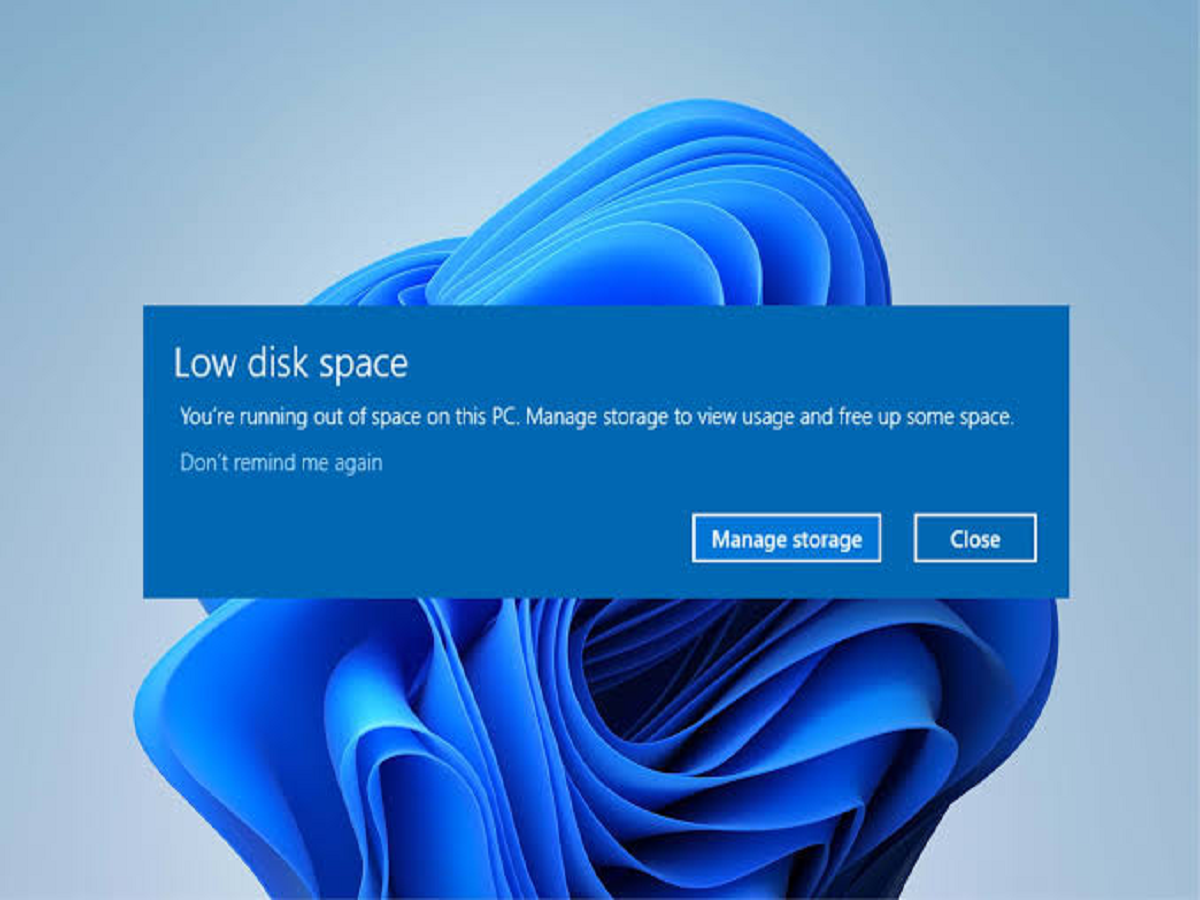
A low-storage warning on a Windows PC can appear at the worst possible time. When the drive is nearly full, installing updates, downloading files and even running everyday applications can become difficult.
However, you don't need to start deleting personal files randomly. Several types of unnecessary data can often be removed safely.
1. Empty the Recycle Bin
Deleting a file doesn't immediately remove it from your storage drive. Windows usually moves it to the Recycle Bin first.
If you're certain you won't need those deleted files, emptying the Recycle Bin can instantly recover the space they occupy.
Just remember that files removed after emptying it are much harder to recover.
2. Remove Temporary Files
Windows and applications create temporary files during normal operation.
Over time, some of these files can remain on the computer even after they're no longer useful.
Windows includes built-in storage-management options that allow you to review and remove temporary data. Check the categories carefully before confirming the cleanup.
3. Clean Up Old Downloads
The Downloads folder can become a digital dumping ground.
Old PDFs, ZIP archives, installation files, images and documents can remain there long after you've finished using them.
Sort the folder by file size and date. Large files you no longer need are usually the easiest targets.
4. Uninstall Programs You Never Use
Open your installed-apps list and look for software you haven't used in months.
Old games, trial applications and programs installed for one-time tasks can occupy significant amounts of storage.
If you know you no longer need an application, uninstalling it is generally more effective than simply deleting its shortcut.
5. Remove Old Windows Update Files Carefully
Windows can retain files associated with previous updates or system components.
Some cleanup options can recover substantial space, but you should understand what you're removing before proceeding.
Avoid manually deleting files from Windows system folders just because they appear large.
6. Find Large Personal Files
Sometimes the biggest storage problem isn't Windows at all—it's your own files.
Videos, screen recordings, old project folders and game installations can consume tens or hundreds of gigabytes.
Use Windows' storage settings or File Explorer to identify unusually large files and folders. Move important archives to another drive if you don't need them stored locally.
7. Delete Duplicate Files
Duplicate photos, videos and documents can accumulate when files are copied between phones, external drives and computers.
Review duplicates carefully before deleting them. Two files with similar names aren't necessarily identical, so confirm their contents before removing anything.
What You Shouldn't Delete Randomly
Avoid manually deleting unfamiliar files from folders such as Windows, Program Files or other system directories simply because they occupy space.
Removing critical files can cause applications or Windows itself to malfunction.
When possible, use Windows' built-in storage and uninstall tools rather than manually deleting system data.
A Simple Storage Cleanup Can Make a Big Difference
When your PC is running out of space, start with the safest targets: Recycle Bin contents, temporary files, old downloads, unused applications and large files you no longer need.
You can often recover a surprising amount of storage without touching important documents, photographs or other personal data.
The key is simple: clean up deliberately, not randomly.