TECH
Chrome Users, Don’t Miss This New Trick: 5 Settings That Can Make Browsing Faster, Cleaner and Safer
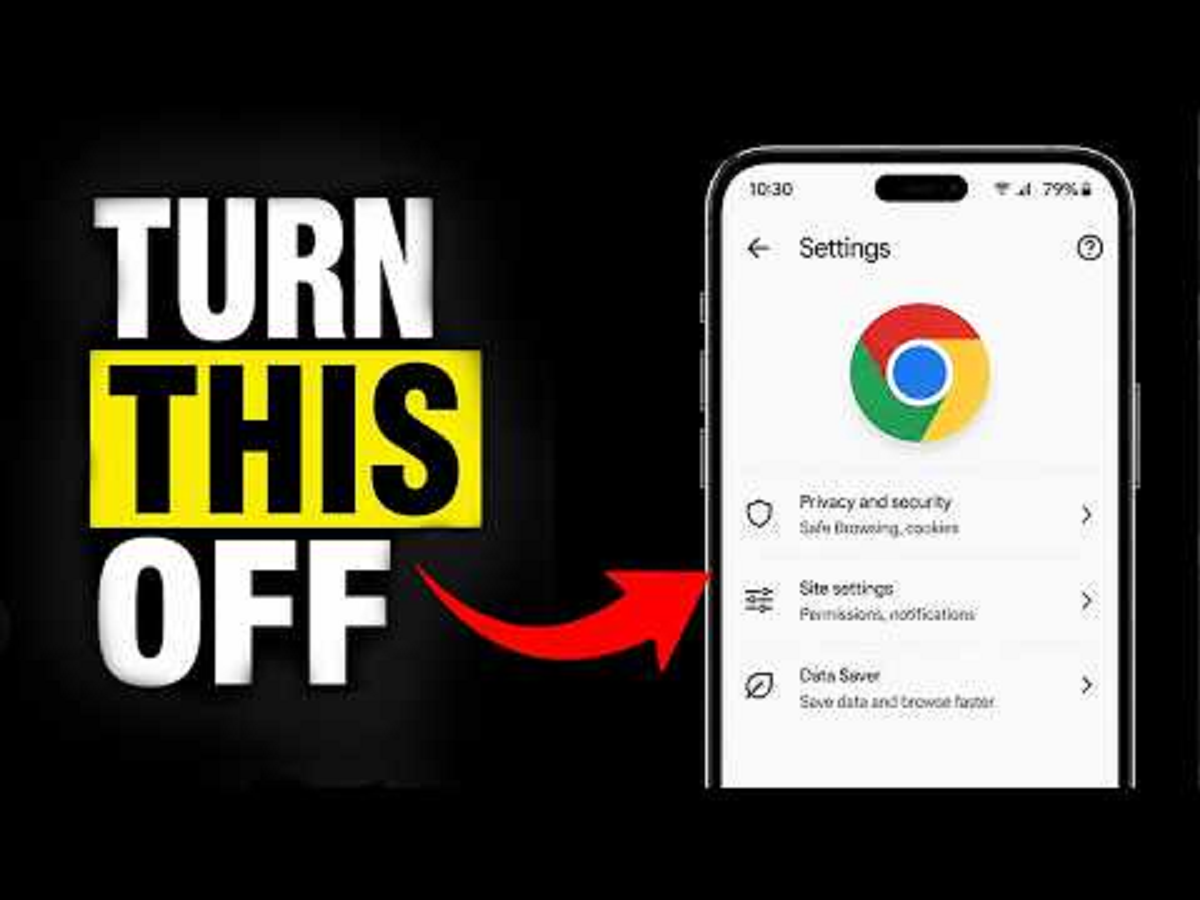
Google has released Chrome 152 for Android, bringing stability and performance improvements to the mobile browser. The update is rolling out through Google Play, but beyond simply updating the app, there are several Chrome settings that users can adjust to make everyday browsing more convenient.
1. Turn on Chrome’s Safety Check
If you rarely check your browser’s security settings, Chrome’s Safety Check is worth using.
Open Chrome and go to:
Chrome → Settings → Safety Check
The feature can help identify issues related to saved passwords, Safe Browsing and Chrome updates.
Running the check regularly is a simple way to make sure you are not ignoring an important security warning.
2. Stop Websites From Sending Too Many Notifications
Website notifications can quickly become annoying, especially after accidentally tapping “Allow” on a website.
You can manage them through Chrome's notification and site-permission settings.
Go to:
Chrome → Settings → Site settings → Notifications
From there, you can review which websites are allowed to send notifications and remove permission from sites you no longer want to hear from.
This is particularly useful if your notification panel is constantly filled with alerts from websites you visited only once.
3. Use Incognito Mode for Temporary Browsing
Chrome's Incognito mode is useful when you don't want a particular browsing session to remain in your normal Chrome history.
To open it, tap the three-dot menu and select New Incognito tab.
However, Incognito does not make you completely anonymous online. Websites, network administrators and internet service providers may still be able to observe certain activity.
So it should be treated as a privacy convenience rather than a complete anonymity tool.
4. Save Important Pages Instead of Keeping Dozens of Tabs Open
If you regularly keep dozens of Chrome tabs open because you are afraid of losing useful pages, try using bookmarks or Chrome's reading-related features instead.
You can save important pages and close unnecessary tabs. This makes it easier to find information later without turning Chrome into a huge collection of open pages.
A cleaner tab list can also make switching between pages considerably easier.
5. Update Chrome Regularly
This is perhaps the simplest trick, but many users ignore it.
Google released Chrome 152 for Android on September 1, and the company says the update includes stability and performance improvements. It is being made available through Google Play over the following days.
To check for an update:
Open Google Play Store → Search for Google Chrome → Tap Update
If you see Open instead of Update, your installed version may already be current.
A Useful New Chrome Habit
Instead of waiting for Chrome to become slow or behave strangely, make it a habit to occasionally check:
- Whether Chrome is updated
- Which websites have notification permission
- Whether unnecessary tabs can be closed
- Whether saved passwords need attention
- Whether unfamiliar site permissions should be removed
- Whether Chrome's security recommendations require action
These small checks can make a noticeable difference to your everyday browsing experience.
Chrome Is Getting More Productivity Features Too
Google has also been adding productivity-focused features to Chrome throughout 2026. Earlier this year, the company introduced features including Split View, Save to Google Drive and PDF annotations, giving users more ways to work with webpages and documents directly from the browser.
This means Chrome is increasingly becoming more than a simple tool for opening websites.
The Bottom Line
If you use Chrome on your Android phone every day, updating the browser and reviewing its settings can be one of the easiest ways to improve your browsing experience.