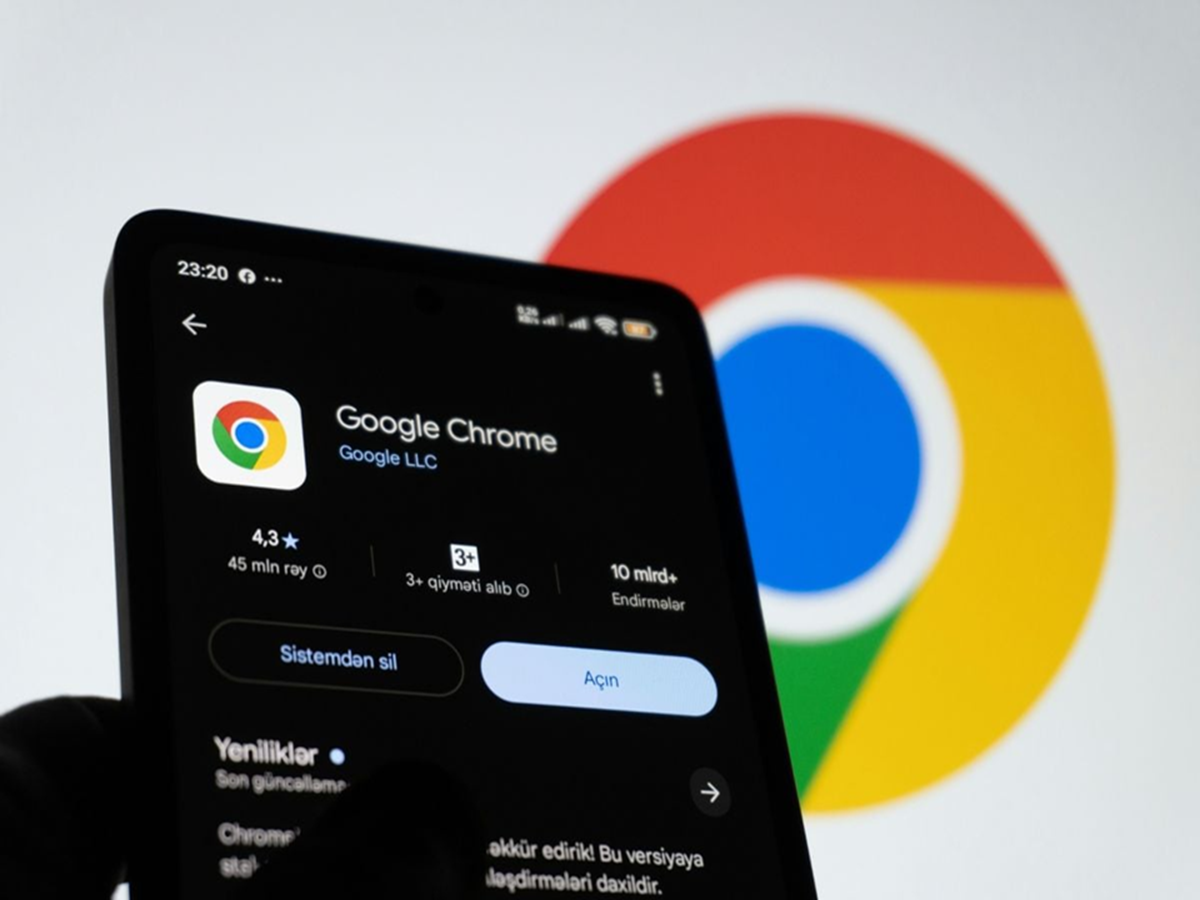
Google Chrome is one of the most widely used web browsers, but many users only scratch the surface of what it can do. From improving privacy to speeding up browsing and organizing tabs, Chrome includes several built-in features that can make your daily browsing experience much more efficient.
Here are eight Chrome tricks that every user should know.
Group Your Tabs
If you often have dozens of tabs open, use Tab Groups to keep them organized.
Right-click on a tab, select Add Tab to New Group, assign a name and color, and group related tabs together. It's perfect for work, shopping, travel planning, or research.
Pin Frequently Used Websites
Visit the same websites every day? Pin them instead of searching each time.
Right-click the tab and choose Pin. The tab becomes smaller and stays on the left side of the browser whenever Chrome is open.
Use Chrome's Built-in Password Manager
Chrome can securely save your login credentials and automatically fill them in when you revisit websites.
You can also use the Password Manager to check for weak or compromised passwords and update them when necessary.
Search Within a Website
Looking for specific information on a webpage?
Press Ctrl + F (Windows) or Cmd + F (Mac), type a keyword, and Chrome will instantly highlight every matching result on the page.
Use Reading Mode
Long articles can be distracting because of ads and pop-ups.
Chrome's Reading Mode removes unnecessary elements and displays only the main content, making articles easier to read.
Send a Page to Your Phone
If you're signed in with the same Google account on multiple devices, you can instantly send a webpage from your computer to your smartphone.
Right-click anywhere on the page and select Send to Your Devices.
Enable Safety Check
Chrome includes a built-in Safety Check that scans for compromised passwords, harmful extensions, outdated browser versions, and unsafe settings.
Run this check regularly from Chrome's Settings to improve your online security.
Use Live Captions for Videos
Chrome can automatically generate captions for supported audio and video content.
This feature is especially useful when watching videos in noisy environments or without headphones.
Bonus Tip: Close All Tabs You Don't Need
Having too many tabs open consumes memory and can slow down your computer.
Review your tabs regularly and close the ones you no longer need. This can improve browser performance and reduce battery usage on laptops.
Final Thoughts
Chrome offers much more than basic web browsing. Features like Tab Groups, Password Manager, Reading Mode, Safety Check, and Live Captions can help you browse more efficiently while improving privacy and productivity. Spending a few minutes exploring these built-in tools can make your everyday internet experience faster, safer, and more organized.