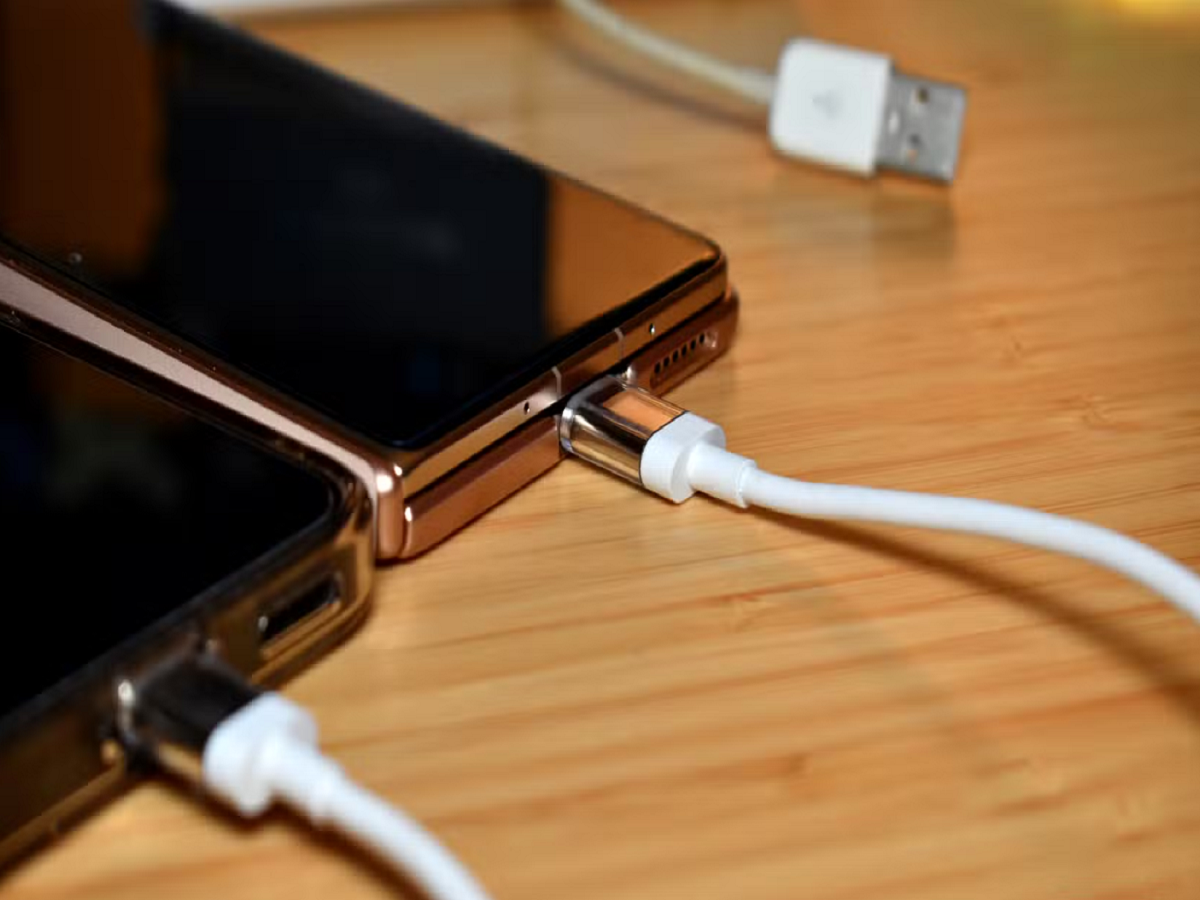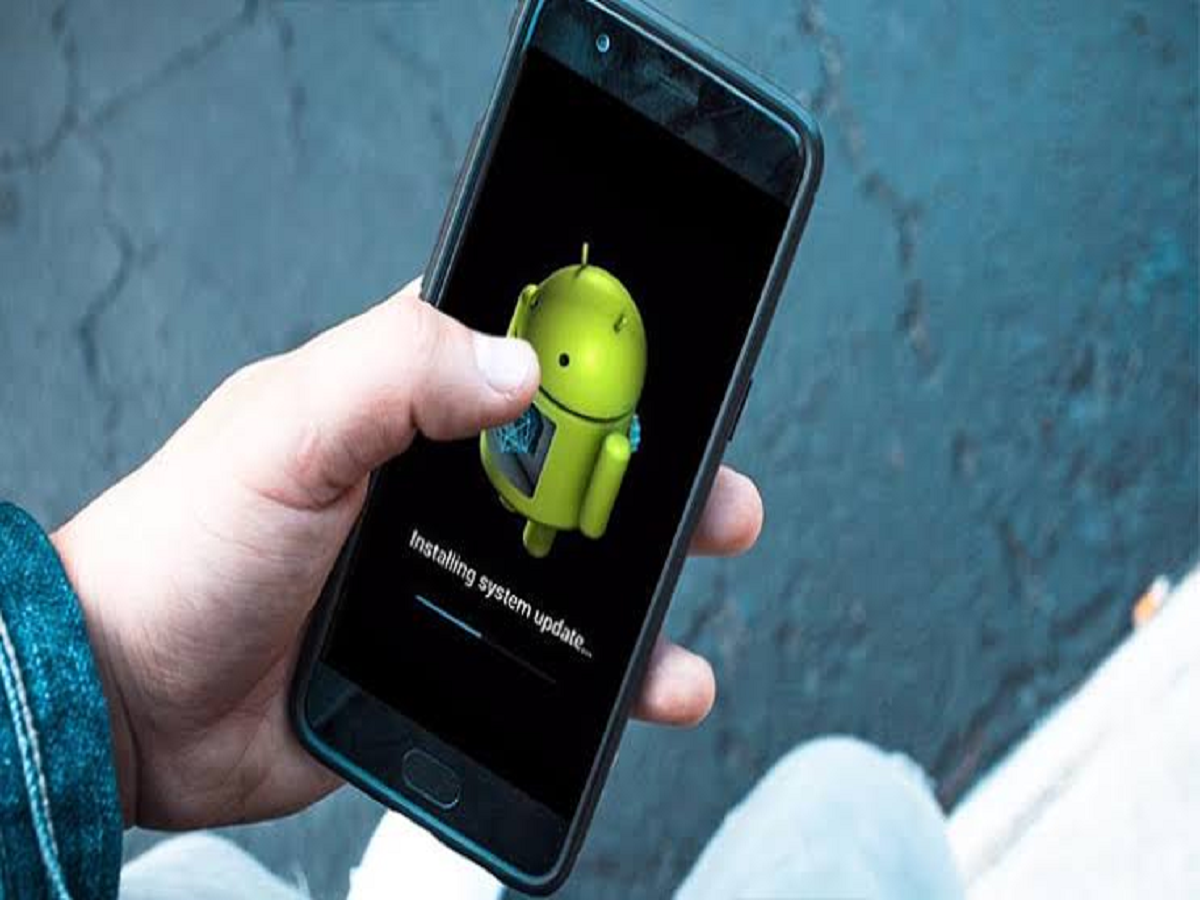
If your Android phone has started feeling slower than it did when you bought it, you don't necessarily need a new device or a “phone booster” app. Several useful Android settings can help improve performance, reduce unnecessary background activity and free up storage.
Some of these features are buried inside settings, which is why many users never use them. Here are seven simple tricks worth trying.
1. Check which apps are using the most storage
A phone can become sluggish when its internal storage is almost full. Instead of randomly deleting files, first find out which apps and categories are consuming the most space.
Go to Settings > Storage and check the storage breakdown. Large videos, downloads and apps you no longer use are usually the easiest places to recover space.
Avoid downloading third-party “cleaner” apps just to perform basic storage management.
2. Stop unnecessary apps from running in the background
Some applications continue performing tasks even when you aren't actively using them.
Open Settings > Apps, select an app you rarely need running in the background and check its battery or background-usage settings. Depending on your phone's Android version and manufacturer, you may be able to restrict background activity.
Be careful with messaging, navigation and other apps for which you need timely notifications.
3. Use the Privacy Dashboard to find unnecessary permissions
Android's Privacy Dashboard can show which apps have accessed sensitive information such as your location, camera and microphone.
Open Settings > Privacy > Privacy Dashboard and review the permissions.
If a basic app has access to your microphone, camera or location without a clear reason, consider removing that permission.
4. Turn off permissions you don't actually need
You can go one step further by checking individual app permissions.
Go to Settings > Apps > [App name] > Permissions and review access to:
- Location
- Camera
- Microphone
- Contacts
- Photos and videos
For sensitive permissions, choose Allow only while using the app where that option makes sense.
This not only improves privacy but can also prevent apps from unnecessarily accessing certain phone functions.
5. Try split-screen instead of constantly switching apps
Android's split-screen feature can be particularly useful on phones with large displays.
Open the recent-apps screen, tap the app's icon and select Split screen or the equivalent option on your phone. You can then use two supported apps simultaneously.
For example, you can keep a calculator open while checking a document or watch a video while browsing another application.
6. Share Wi-Fi without typing the password
If someone needs to connect to your Wi-Fi, you don't always need to tell them the password.
On supported Android phones, open Settings > Network & internet > Internet, select your connected Wi-Fi network and look for the Share option. A QR code can then be displayed for another person to scan.
This is particularly useful when your Wi-Fi password is long or difficult to remember. Android also supports QR-based Wi-Fi sharing on many devices.
7. Restart your phone regularly
It sounds basic, but a restart can clear temporary processes and resolve minor software glitches.
If your phone has been running continuously for a long time and starts behaving strangely, restarting it is one of the simplest troubleshooting steps to try before installing anything or changing advanced settings.
One more important tip: don't install “RAM booster” apps blindly
Many Android phones already have built-in tools for managing storage, battery usage and permissions. Installing additional apps that promise to “boost RAM” or “double your speed” can add another layer of background activity rather than solving the underlying problem.