TECH
Accidentally Sent the Wrong Instagram Message? Here’s a Simple Way to Fix It Without Showing the “Edited” Tag
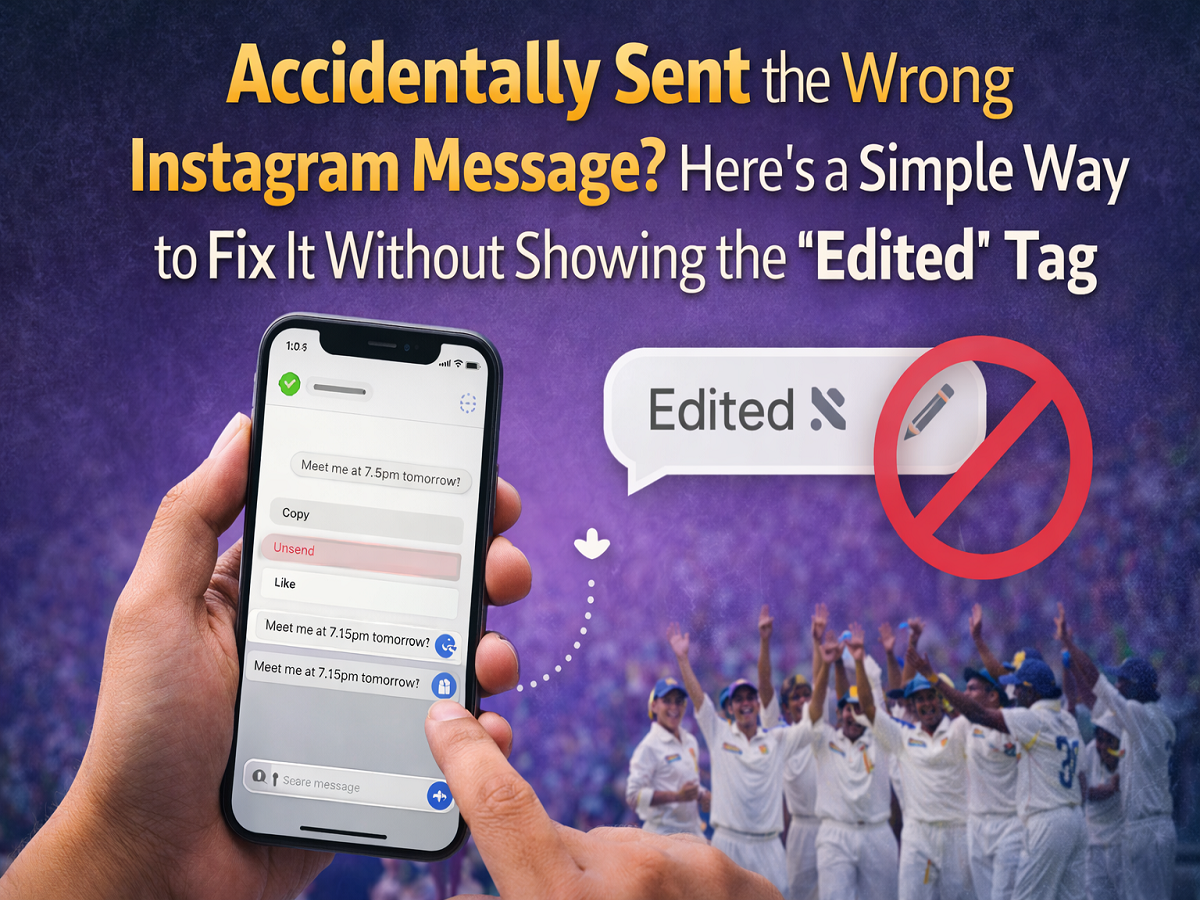
Sending a message by mistake on social media can happen to anyone. Whether it’s a typo, sending a text to the wrong person, or realizing you wrote something incorrectly, such situations can feel awkward—especially in private conversations. Thankfully, users of Instagram have options to correct messages after sending them.
Instagram Direct Messages (DMs) include a feature that allows users to edit messages within a limited time frame. However, when you use the built-in edit option, the message displays an “Edited” label, making it clear that the text has been changed.
Many users prefer to correct a message without showing this tag. Fortunately, there is a simple workaround that allows you to fix a message quietly without alerting the recipient.
Why Instagram Shows the “Edited” Label
Like most modern messaging platforms, Instagram allows users to modify sent messages. This feature helps correct spelling errors or update information without sending another message.
However, transparency is important on messaging platforms. That’s why Instagram automatically displays an “Edited” tag when a message is modified. This ensures the recipient knows the text has been changed after being sent.
If you want to avoid that label appearing in the conversation, you can use another approach that involves copying, deleting, and resending the corrected message.
How to Correct a Message Without Showing It Was Edited
This method works because Instagram treats deleted messages and edited messages differently. When you delete a message, the platform does not notify the other person that the message was removed.
Here’s how you can fix a message quietly:
1. Open the Conversation
Launch the Instagram app and go to the Direct Messages (DM) section. Open the chat where the incorrect message was sent.
2. Copy the Message
Tap and hold the message you want to correct. A menu will appear on the screen. Select the Copy option.
3. Delete the Original Message
Press and hold the message again and choose Delete or Unsend. This removes the message from the chat.
Unlike some messaging apps, Instagram does not send a notification when a message is deleted.
4. Paste and Edit the Message
Paste the copied message into the chat box. Now make the necessary corrections before sending it again.
5. Send the Updated Message
After editing the text, send the corrected message. Since the original message was deleted instead of edited, the new message will appear normally without the Edited label.
Things You Should Remember
Although this workaround is effective, it works best when done quickly. Here are a few important points to keep in mind:
-
Timing matters: If the recipient reads the message before you delete it, they may already see the mistake.
-
Limited deletion window: Instagram allows messages to be deleted only within a certain time after sending them.
-
No deletion alert: The platform does not notify users when a message is removed from a chat.
-
Editing still available: If you simply edit the message instead of deleting it, the Edited tag will appear.
Why This Trick Is Useful
This method works because deleting a message removes it completely from the conversation. When you resend the corrected text, it appears as a fresh message rather than a modified one.
For users who want to maintain a clean conversation without visible corrections, this trick can be extremely helpful.
Messaging errors are common in today’s fast-paced digital communication. Fortunately, Instagram offers flexible tools that allow users to manage and correct mistakes easily.
By quickly copying, deleting, and resending a corrected message, you can fix an error in your Instagram chat without drawing attention to it. Just remember to act fast before the message is seen or the deletion time window expires.
Knowing these small features can make your Instagram conversations smoother and help you avoid unnecessary misunderstandings.