WhatsApp has become one of the most frequently used apps on smartphones. From photos and videos to documents, voice messages and forwarded files, a huge amount of data can accumulate inside the app over time. Even if your phone has plenty of storage when you buy it, WhatsApp media can eventually consume several gigabytes.
The good news is that you don't have to delete important chats to free up space. By changing a few settings and cleaning unnecessary files, you can keep WhatsApp under control.
Find out what is consuming your storage
The first step is to check how much space WhatsApp is using.
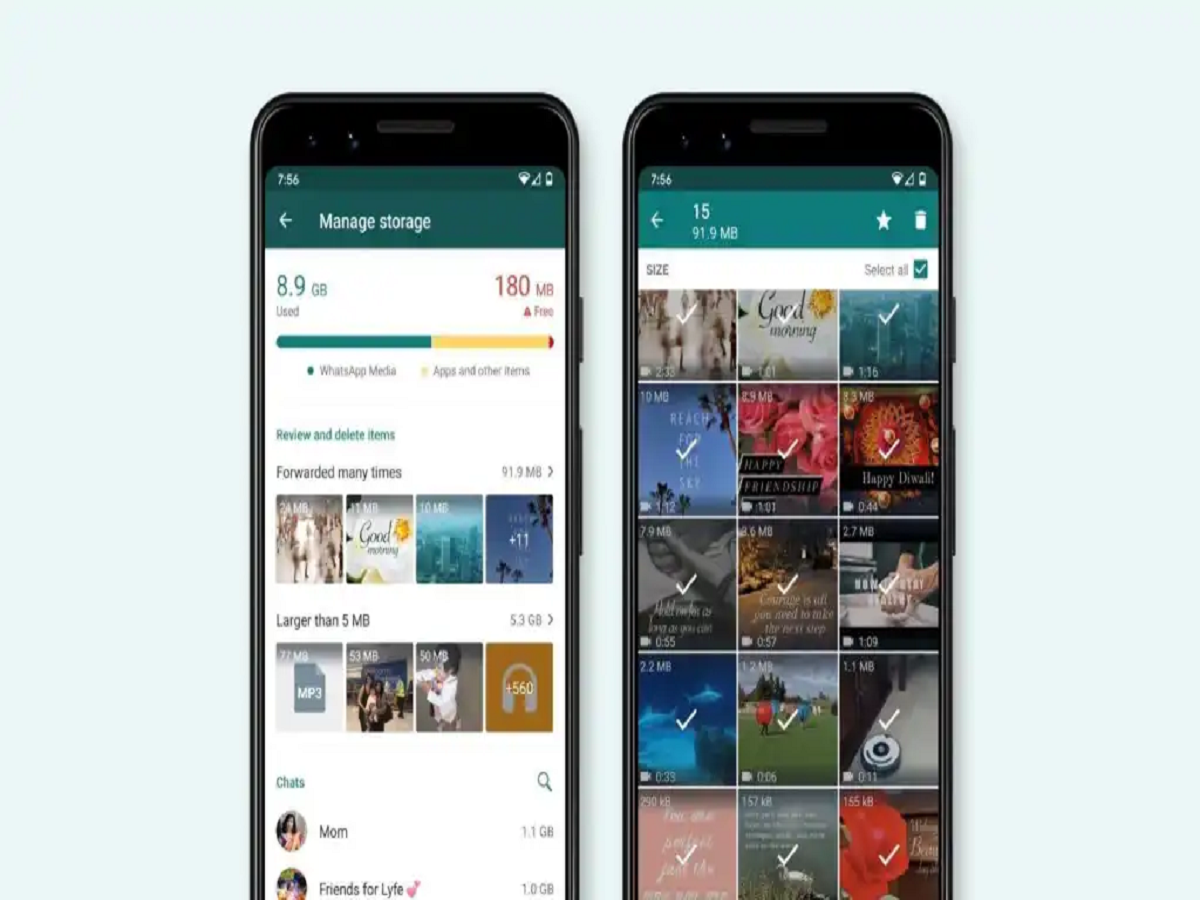
Open WhatsApp and go to Settings > Storage and Data > Manage Storage. Here, you can see which conversations and media files are taking up the most space.
Large videos and frequently forwarded files are often responsible for a significant portion of the storage usage.
Delete large files first
Instead of manually checking every conversation, look for the largest files in WhatsApp's storage manager.
Videos, high-resolution photos and documents can occupy much more space than ordinary text messages. Review these files and remove anything you no longer need.
This is one of the quickest ways to recover storage without deleting entire conversations.
Stop automatic media downloads
WhatsApp can automatically download photos, videos and documents when you receive them. If you're part of several active groups, this can quickly fill your phone's storage.
Go to Settings > Storage and Data > Media Auto-Download and review the options for mobile data, Wi-Fi and roaming.
You can choose to download media manually instead of allowing everything to be saved automatically.
Prevent unnecessary photos from appearing in your gallery
If you don't want every WhatsApp image and video appearing in your phone's gallery, you can change the relevant media visibility setting.
This is particularly useful for group chats where people frequently share memes, promotional images and other content that you don't necessarily want stored alongside your personal photos.
Be careful with large WhatsApp groups
Family, college, office and community groups can generate enormous amounts of media.
You don't necessarily have to leave these groups. Instead, consider muting them and controlling automatic media downloads so that your phone isn't constantly storing files you may never open.
Check duplicate and forwarded files
The same image or video can sometimes be shared repeatedly across different chats.
Before deleting anything, check whether the file is genuinely important. If you find multiple copies of the same media, keeping one copy and deleting the rest can help recover additional storage.
Review WhatsApp backups
Backups are useful when moving to a new phone or recovering conversations, but they can also become large when they contain years of photos and videos.
Review your WhatsApp backup settings and decide whether you really need videos included in your backup. If your cloud storage is limited, excluding unnecessary videos can significantly reduce backup size.
Don't delete important files without checking
Storage cleanup should be done carefully. Before deleting photos, videos, documents or chats, check whether you need them for work, travel, finances or personal records.
If a file is important, save it somewhere secure before removing it from WhatsApp.
A few minutes of cleanup can make a big difference
WhatsApp storage problems usually don't appear overnight. They build up gradually as conversations, groups and media accumulate.
Checking Manage Storage, deleting unnecessary large files, reducing automatic downloads and reviewing backups every few weeks can keep your phone's storage under control.