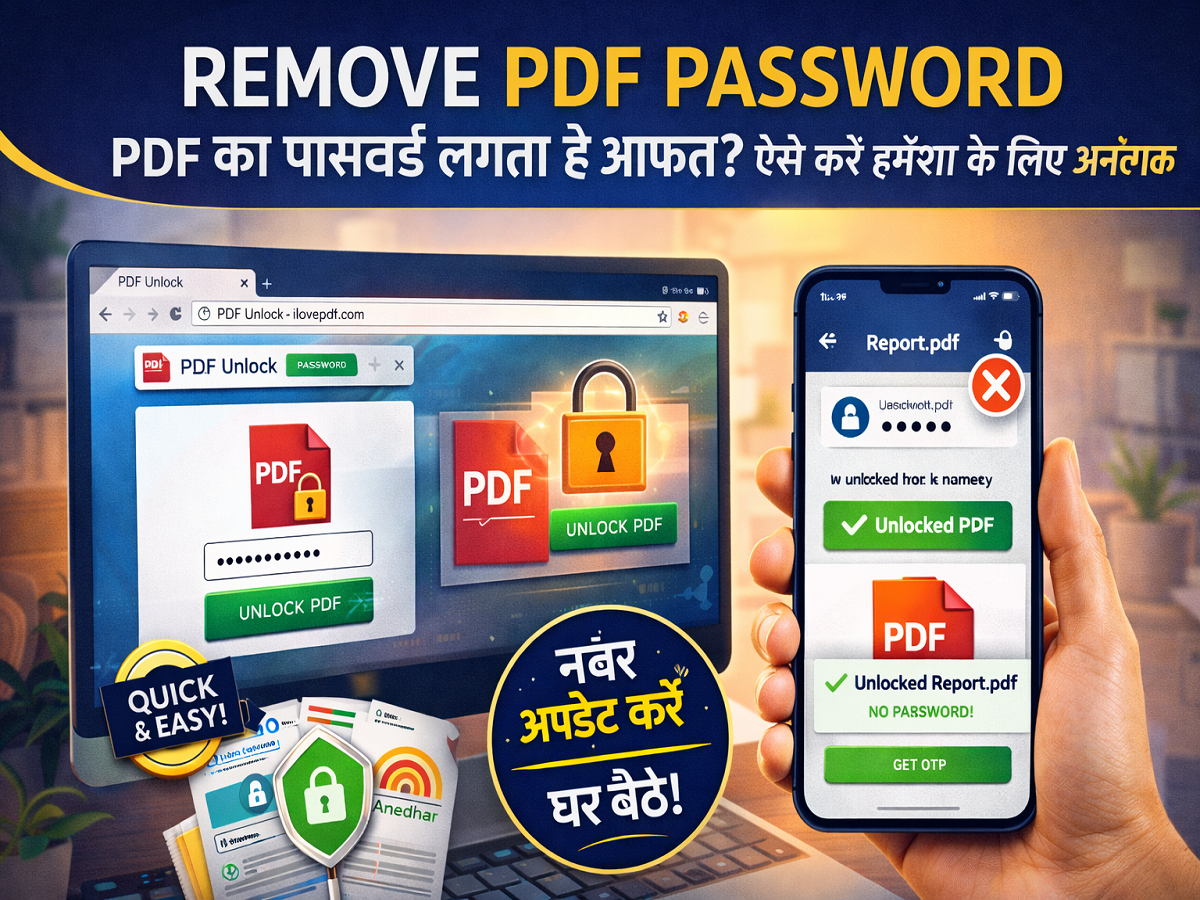
Password-protected PDF files are designed to keep sensitive information secure, but they can become frustrating when you need to access them frequently. Whether it’s a bank statement, salary slip, or official document, entering a password every time can slow you down.
The good news is that you can remove a PDF password quickly and safely without installing any software—using just your browser. Here’s a complete, easy-to-follow guide.
Why Remove a PDF Password?
There are several situations where unlocking a PDF makes sense:
- You need to access the file repeatedly
- You want to share the document without giving out the password
- You need to merge multiple PDFs into one file
- You want to print or store documents without restrictions
However, it’s important to ensure that you are authorized to remove the password before proceeding.
Method 1: Remove PDF Password Online (No Software Needed)
You can use trusted online tools like:
Follow these steps:
- Open your browser (on phone or computer)
- Search for “PDF Unlock”
- Choose a reliable website such as iLovePDF or Smallpdf
- Click on ‘Choose File’ and upload your PDF
- Enter the existing password (for verification)
- Click on ‘Unlock PDF’
- Download the unlocked file
👉 Once downloaded, the new file will no longer require a password.
Method 2: Use Browser Print Trick
Another simple way is using your browser:
- Open the PDF file and enter the password
- Press Ctrl + P (or select Print option)
- Choose ‘Save as PDF’ instead of printing
- Save the file
The newly saved file will not have password protection.
Benefits of Removing PDF Password
- Faster access: No need to enter password repeatedly
- Easy sharing: Send files without extra instructions
- Better productivity: Combine or edit files easily
- Convenient backup: Store unlocked versions securely
Important Safety Tips
While removing a password is easy, keep these precautions in mind:
- Only unlock PDFs you own or have permission to use
- Avoid uploading sensitive documents to unknown websites
- Use trusted platforms for better data security
Common Use Cases
Password removal is especially useful for:
- Bank statements and credit card bills
- Aadhaar or government documents
- Income tax certificates and salary slips
- Work reports and shared team files
Final Takeaway
Removing a PDF password no longer requires technical expertise or paid software. With simple online tools or browser tricks, you can unlock files in minutes.
Just remember to use this feature responsibly and ensure your data remains secure while making your documents more accessible and easy to manage.