A smartphone can feel incredibly fast when it is new, but after months or years of use, many users notice that apps take longer to open, animations become sluggish and the phone occasionally freezes. This doesn't always mean that the hardware has become useless.
In many cases, unnecessary apps, low storage, background activity and outdated software can contribute to poor performance. Before spending money on a new phone, try these simple steps.
1. Free up some storage
One of the first things to check is your phone's available storage.
When storage becomes nearly full, managing files and creating temporary data can become more difficult. Remove large videos, duplicate photos, downloaded files and apps you no longer use.
Try to keep a reasonable amount of free storage rather than filling the phone completely.
2. Remove apps you rarely use
It's easy to accumulate dozens of applications over time. Some may be used once and then forgotten.
Go through your installed apps and uninstall those you no longer need. This can also reduce background activity and unnecessary notifications.
Avoid downloading applications simply because they are trending if you don't have a genuine need for them.
3. Restart your phone regularly
A simple restart can sometimes resolve temporary performance problems.
Restarting closes running processes and gives the operating system a fresh start. If your phone has been running continuously for a long period, restarting it can be a useful first troubleshooting step when the device begins behaving unusually.
4. Keep Android and apps updated
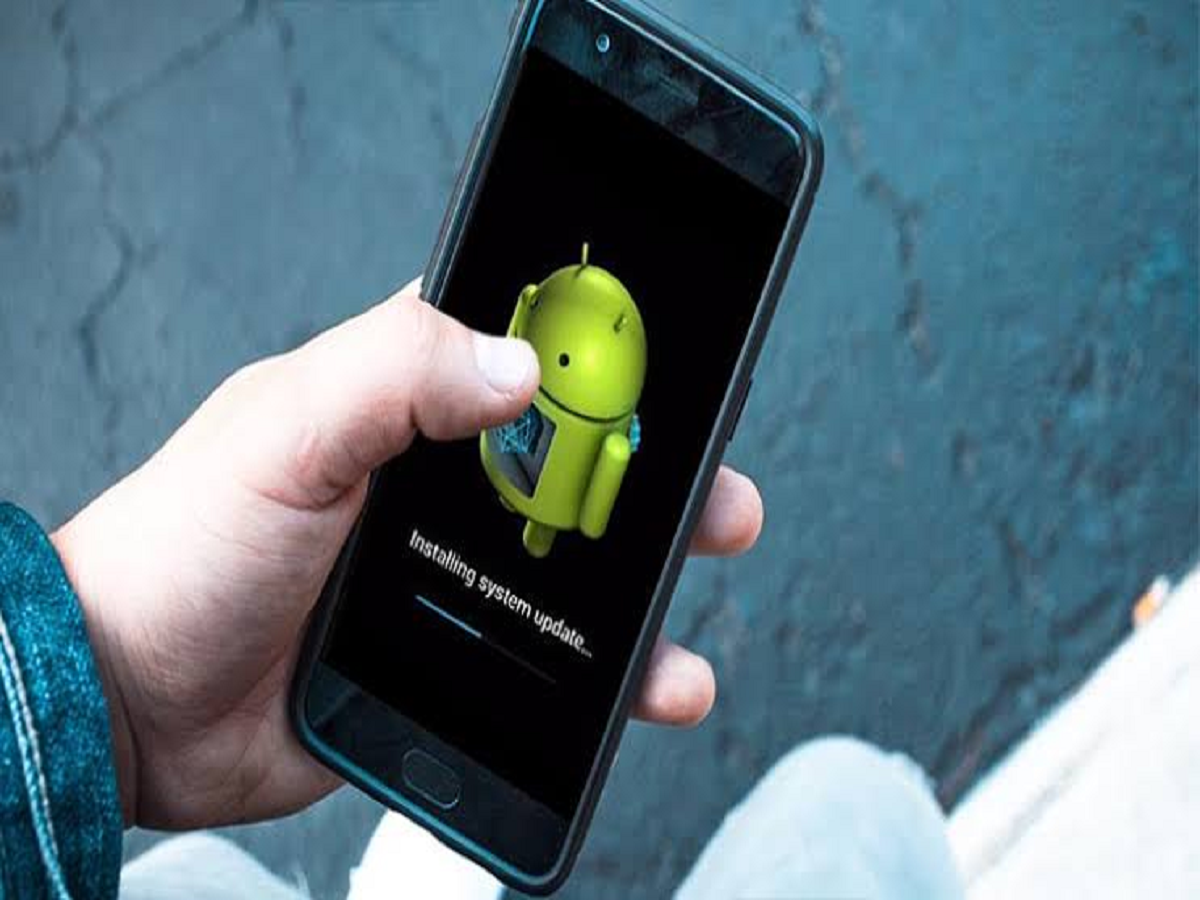
Software updates can include bug fixes, performance improvements and security patches.
Check whether your phone has an available system update and update important applications through the official app store. If a particular app is constantly crashing or slowing down your phone, updating it may solve the problem.
5. Reduce unnecessary background activity
Some applications continue working in the background even when you're not actively using them.
Check your battery and app settings to identify applications consuming unusually high amounts of background power or data. Restrict background activity for apps that don't need to update constantly.
However, avoid restricting essential apps such as messaging, security or navigation services if doing so would prevent important notifications from arriving.
6. Clear temporary app data when necessary
Some applications can accumulate a large amount of cached data over time.
If a particular app is behaving strangely, you can check its storage settings and clear its cache. This removes temporary files without necessarily deleting your account or personal data.
Be careful with options such as Clear Storage or Clear Data, as these can reset the application and remove locally stored information.
7. Don't install "phone booster" apps blindly
Many users install cleaning or speed-boosting applications when their phones become slow. But installing another application isn't always the best solution.
Some cleaner or booster apps may consume additional resources themselves or bombard users with advertisements. Android already provides built-in tools for managing storage, battery usage and applications.