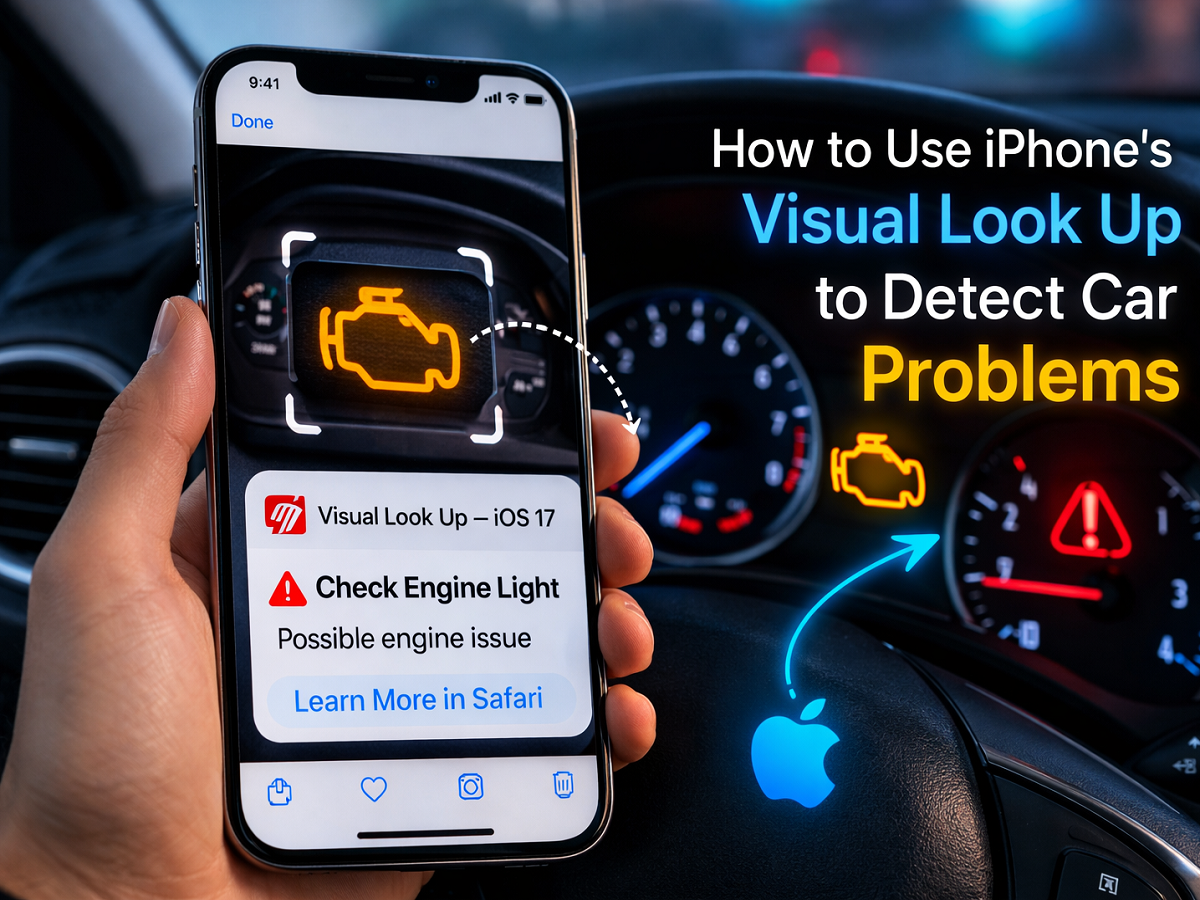
When Apple rolled out the iPhone 15 series in September, it also introduced the public version of iOS 17. While the update brought several improvements across apps and system tools, one lesser-known enhancement is proving especially useful for drivers. The upgraded Visual Look Up feature can now recognize common car dashboard symbols—helping users quickly understand what those mysterious warning lights actually mean.
For many drivers, dashboard icons can be confusing and stressful. A sudden light flashing on the instrument panel often leaves car owners guessing whether it’s a minor issue or something serious. With iOS 17, your iPhone can now help decode these symbols directly from a photo or video.
What’s New in Visual Look Up on iOS 17?
Visual Look Up is a smart image recognition feature built into the Photos app. Previously, it could identify landmarks, plants, pets, and even food items from images stored on your device. For example, users could snap a picture of a flower to learn its name or tap on a dish to get related recipe suggestions.
With iOS 17, the feature has expanded to include car-related symbols. This means your iPhone can now detect dashboard warning lights, climate control icons, headlight indicators, and other vehicle-related signs.
According to Apple, users can also access additional information directly from the callout menu after lifting a subject from a photo. The tool works not only with images but also with paused video frames, making it flexible and easy to use in different scenarios.
How Visual Look Up Helps Drivers
The updated feature can identify multiple symbols within the same image. For example, if your dashboard displays both a check engine light and a battery warning icon, the iPhone can recognize each one separately.
Once identified, the Photos app provides:
-
The name of the symbol
-
A brief explanation of what it indicates
-
Quick links to learn more via the browser
This can help drivers determine whether the issue requires immediate attention or a routine service check. While it doesn’t replace professional diagnostics, it offers quick guidance when you need clarity.
Reports suggest that the system can recognize a wide range of icons, including:
-
Engine warning lights
-
ABS brake indicators
-
Oil pressure alerts
-
Battery symbols
-
Climate control signs
-
Headlight and fog light indicators
This makes the tool particularly useful for new drivers or anyone unfamiliar with vehicle dashboard terminology.
Step-by-Step: How to Use Visual Look Up for Car Symbols
Using the feature is straightforward and does not require any additional apps. Here’s how you can access it:
Step 1: Open the Photos App
Launch the Photos app on your iPhone running iOS 17.
Step 2: Select or Capture an Image
Take a clear photo of your car’s dashboard warning light, or open an existing image from your gallery.
Step 3: Look for the Special Icon
If the system detects recognizable symbols, you’ll see a special icon in the bottom toolbar. For vehicle-related symbols, it typically appears as a steering wheel symbol.
Step 4: Tap for Details
Tap the steering wheel icon to see identified symbols along with their names and descriptions.
If the steering wheel icon doesn’t appear automatically, tap the “i” (information) button to manually check for recognized elements.
Step 5: Explore Further
You can tap on the provided links to learn more details about the warning sign and possible next steps.
Why This Feature Matters
Car maintenance can be intimidating, especially when unexpected warning lights appear. Many drivers turn to search engines or the vehicle manual for answers. Visual Look Up simplifies this process by offering instant, image-based identification directly from your phone.
It also adds to the growing list of AI-powered tools integrated into iOS 17, reflecting Apple’s broader push to make everyday tasks easier using on-device intelligence.
While the feature is helpful, experts still recommend consulting a certified mechanic for serious or persistent warning lights. The iPhone’s tool should be seen as an informational guide—not a replacement for professional vehicle inspection.
Final Thoughts
The Visual Look Up upgrade in iOS 17 transforms the iPhone into more than just a communication device. By recognizing car dashboard icons and explaining their meanings, it provides practical support in real-life situations.
If you’ve recently updated your iPhone, this is one feature worth trying. The next time a dashboard warning light appears, you may not need to panic—your iPhone could already have the answer.